
Published:
·
updated
22 min read
My playbook for a notion client portal: guest access, page-level permissions, and an automated handoff so each client sees only their own page.

A health coach emailed me a few weeks ago in a bit of a panic. She had ten clients, each with their own meal plans, progress notes, and check-in forms, and she was managing all of it over email and shared Google Docs. Her worry was simple and completely valid. One wrong sharing setting and Client A could stumble onto Client B's private health information. Around the same time, a realtor asked me almost the same question about her buyers, and an agency owner asked it about his projects. Different businesses, but all had same need.
So here is the straight answer. A Notion client portal is not a special feature you switch on. It is a regular Notion page, or a small set of pages, that you share with one client so they see exactly what they need and nothing else. You build it with three things: the right access, page-level permissions, and a little automation for the handoff when a client signs, or some advanced automations for auto-sharing when you have many pages per client. Your clients do not need paid seats, you do not need a separate tool, and your private work stays private. In this guide I will walk through the whole system the way I set it up with clients: the sharing models, the security, the cost question, the automated onboarding, and then the specific setups for coaching, service agencies, and real estate.
How does sharing actually work in a Notion client portal?
There is no single "portal" button in Notion. What you actually do is share selected content, and you have two models to choose from depending on how sensitive the information is.
The first model is to add clients as free guests tied to their email. They get secure, account-based access to exactly the page you share, and nothing else. The second model is to publish the page as a public website, so anyone with the link can view it. Public viewers can see the content but cannot edit it, so at least you are not risking changes.
One detail most businesses do not consider, so I will flag it before anything else. The moment you invite someone by email, even a guest, they have to create a free Notion account to access the page. There is no email-invite path that skips account creation. So when you onboard a client, set that expectation early. They will make a free account, it takes a minute, and after that they are in. Knowing this in advance keeps the first impression smooth instead of confusing.
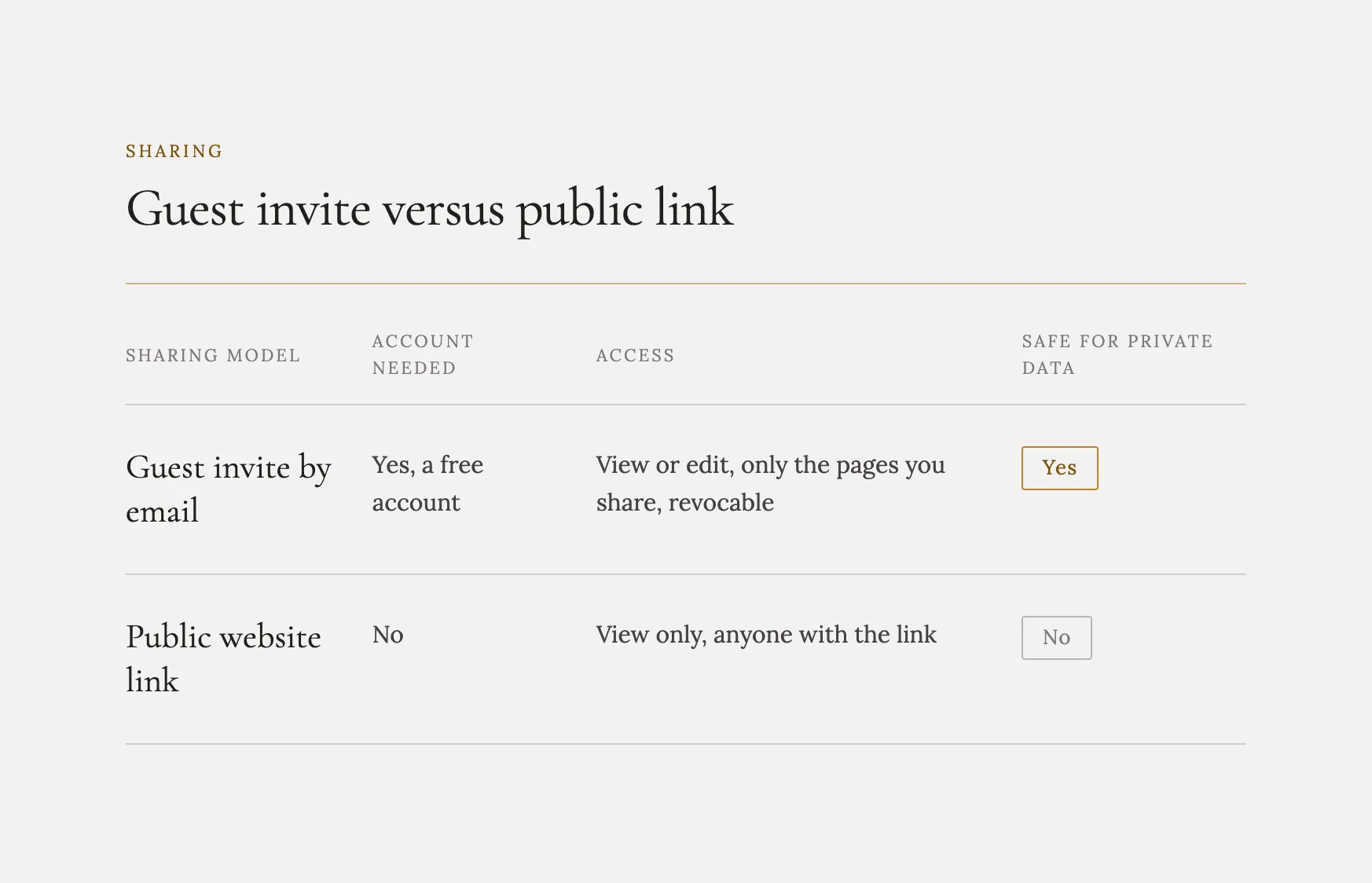
I lean toward the guest model for anything client-specific, because it is tied to a real identity that you can remove later. If you need people to view something without any account at all, the only option is publishing the page as a public website. That works, but it is not secure for personal or sensitive data, because anyone with the link can view it and links are easy to leak. A shared project status is fine as a public page. A client's financials, health details, or contact records are not. When in doubt, use the guest model.
If you do publish a page publicly, two settings matter. Turn off the search-index option so the page is not discoverable by search engines. And check the duplication toggle, because leaving duplication enabled lets viewers copy your content into their own workspace, which may or may not be what you want.
How do page-level permissions keep client data safe?
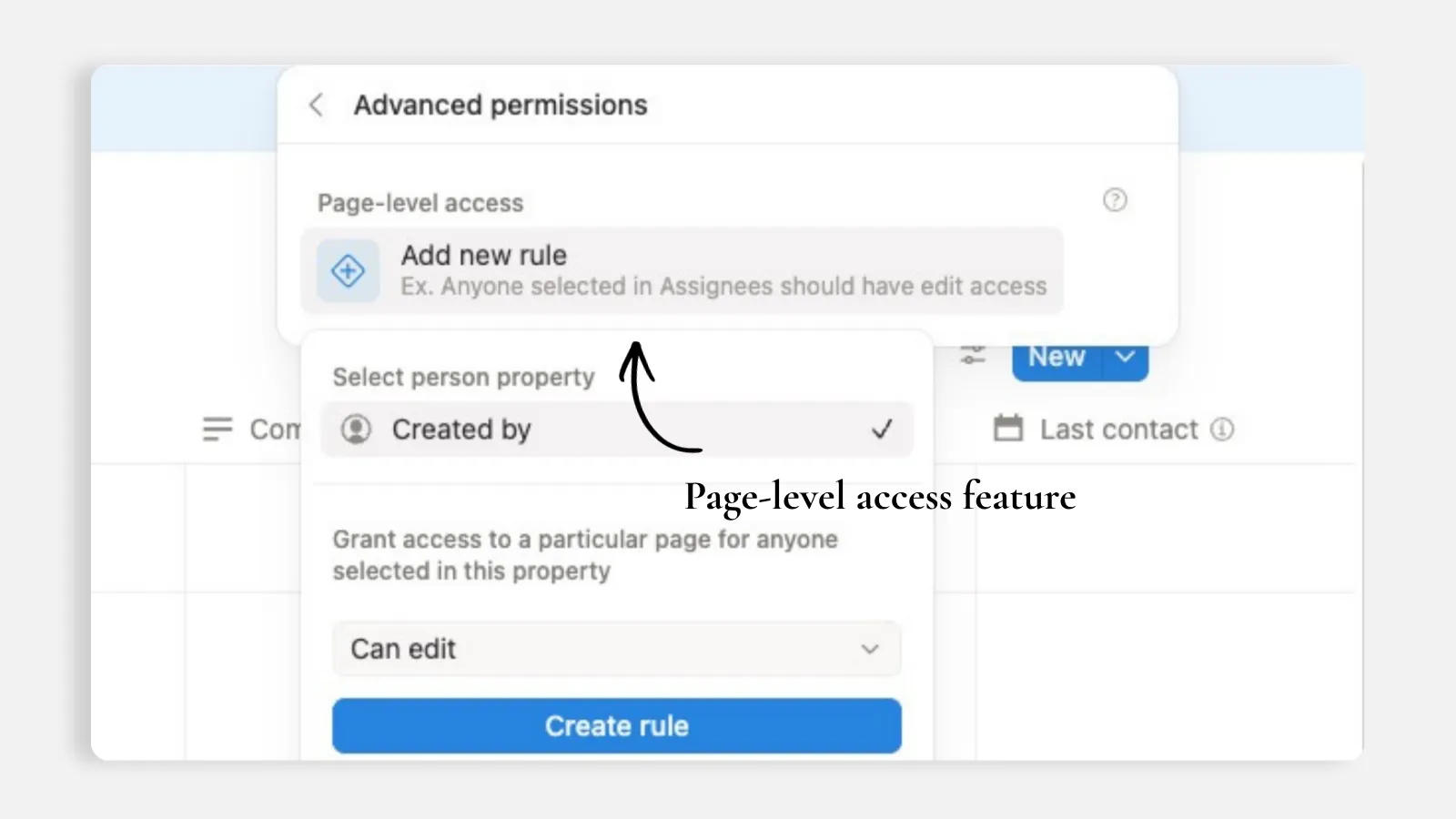
The official Notion guide on how Page-level access works is here.
The piece that makes a portal feel safe once you understand it, is page-level access inside a database. That is the feature that lets you keep every client portal in one clean scalable system, while still making sure each client only sees their own space.
Before Notion released this feature in the past few months, most businesses had to work around the limitation by creating siloed portal pages across their workspace. One client got one independent page, another client got another independent page, and every page had to be shared manually. It worked when you had two or three clients, but it was not a scalable system once you were managing ten, twenty, or fifty portals.
Here is the practical and scalable version. You can build one Client Portals database, where every row is a different client portal. Internally, you see the full database: every client, every status, every handoff, every project space, all in one place. But the client does not see the whole database. With page-level access, you share only their specific portal page with them. They open their portal, see the information meant for them, and never get visibility into the other client portals sitting beside it in the same database.
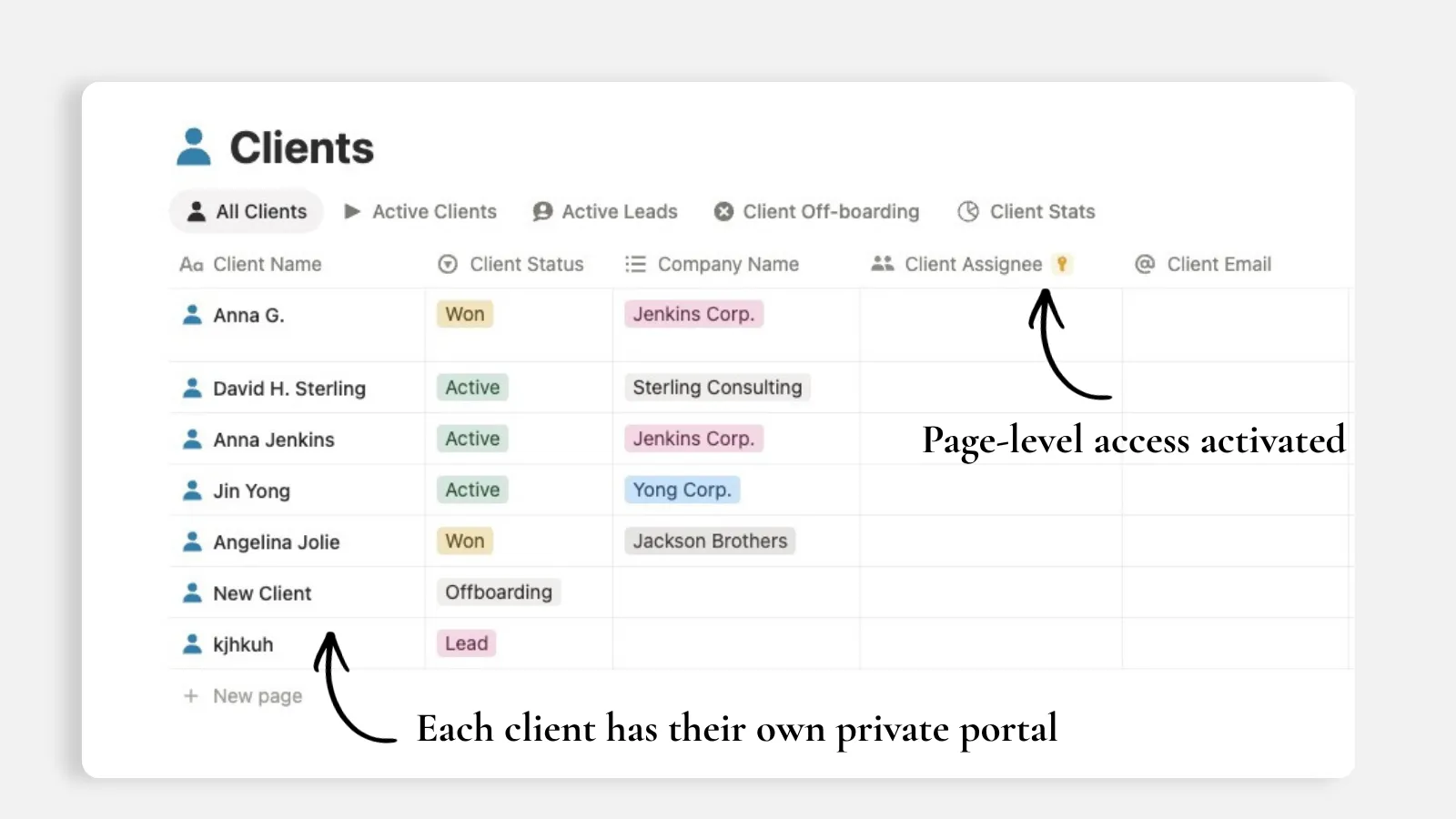
That distinction matters because it lets you scale without creating a mess. You do not need one separate database per client. You do not need ten disconnected portal pages floating around your workspace. You keep one database as the source of truth, then control access at the page level. Client A gets access to Client A's portal. Client B gets access to Client B's portal. Your internal team can still manage the full database from one view, while each client experiences it as a private, focused portal made just for them.
This is especially useful when the portal contains sensitive or client-specific work: project tasks, onboarding steps, deliverables, documents, meeting notes, or check-in information. The database gives your team structure. Page-level access gives the client privacy. Together, they let you run many client portals from one operational hub without exposing one client's information to another.
That clarity is usually the moment clients relax. After I showed one client how the portal pulled the relevant pages into a single place they could reach, they said: "So this is great to know that I can access any of them right here inside of here to do certain things."
One database for you, one private portal for each client, and no accidental window into anyone else's work.
Can I run client portals without paying for every seat?
This is the question I hear most from consultants and agencies. They imagine paying for every client who needs to peek at a project, and they assume that means either a big bill or a locked-down experience where the client can only look, never touch. Neither is true.
Notion has two kinds of collaborators, members and guests, and the distinction governs everything. Members are permanent, billable, per-seat users, typically your internal team. Guests are free and only see the specific pages you share with them. For a client, you almost always want a guest. And when Notion prompts you during sharing to upgrade that person to a paid member, choose "skip for now." That keeps them as a free guest and keeps them off your bill. I have watched people collect surprise charges simply because they clicked through that prompt without reading it.
What you get depends on your plan, so here is the honest picture:
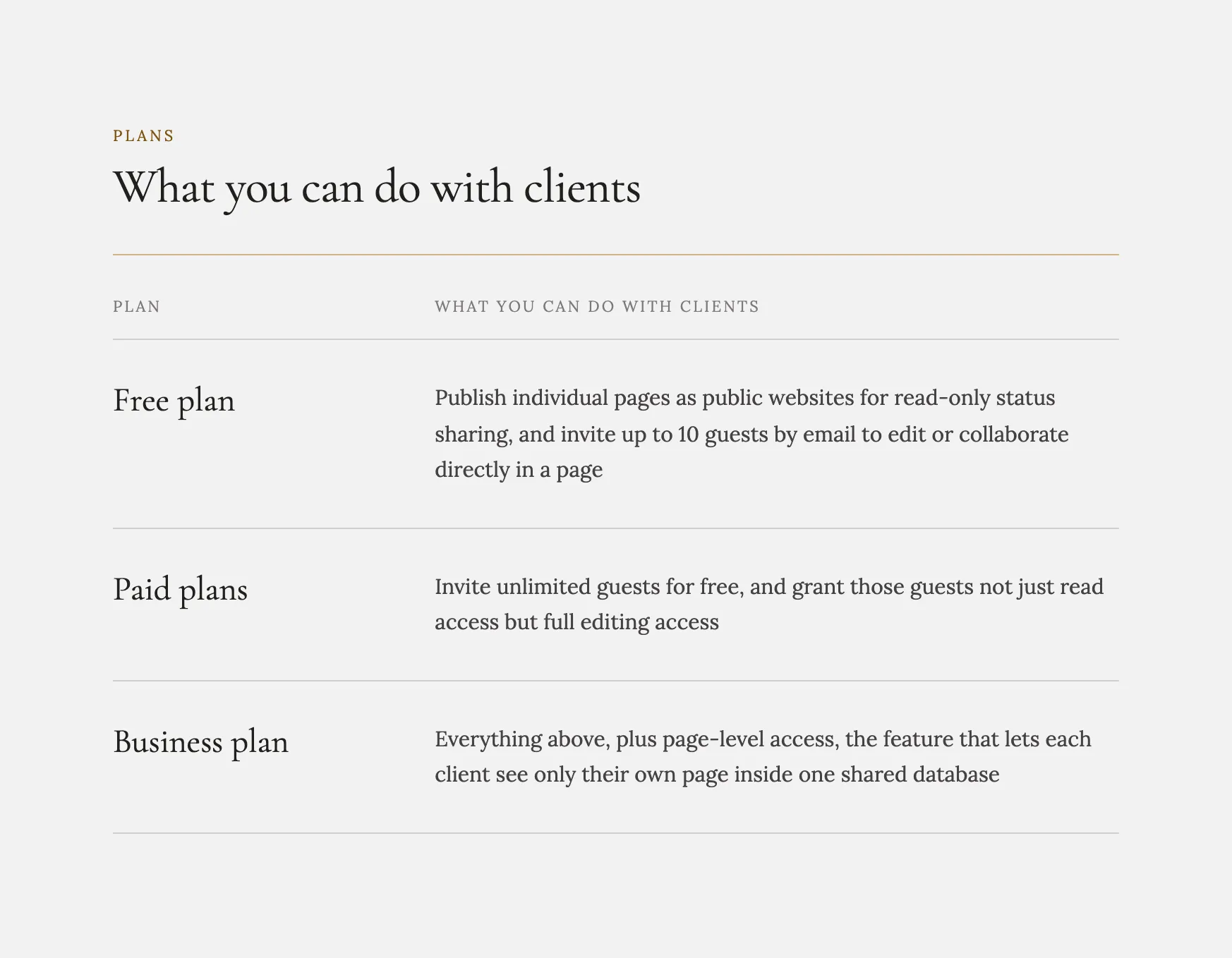
So even on the free plan you can extend collaboration without upgrading. Ten guest editors is ten real client seats at no cost. On a paid plan the guest model gets even more generous. A client, or a whole team of client-side staff, can view and modify the shared pages you are working on together without adding a single per-user cost. They fill in their own intake details, leave comments, update fields you have opened to them, all as free guests.
My advice is to reserve the higher tiers only for features you genuinely need, such as certain email integrations that are not available below the enterprise level, rather than upgrading preemptively because you assumed client access required it.
One honest note on the Business plan, because I would rather you hear it from me than get surprised. The page-level access that makes secure per-client portals inside one database possible is a Business plan feature. If client privacy is central to your business, that is the tier worth paying for. It also includes in-app AI across multiple models, which is often cheaper than routing AI work through external connectors that burn a lot of tokens via MCP. The guests themselves stay free either way.
How do I trigger onboarding automatically when a client signs?
Every consultant I work with hits the same wall eventually. A new client signs, and then begins the same ritual: create their folder, build their task list, set up the shared space, invite them in. It is fifteen minutes of clicking that you repeat for every single client. You do not have to do any of it by hand.
Instead of manually building an onboarding checklist every time, I set up a database automation tied to a status change. When a contact's status flips from "lead" to "client," an action fires that auto-generates the onboarding checklist for me. This is a rule I give every client: The Trigger Lives in the Owning Database. The automation belongs in the same Clients database where the status lives, because the trigger is a change you were going to make anyway. The work happens as a side effect of something you already do. This is the same trigger-and-action mechanism I break down in Notion Automation Setup: Real Use Case.
You can push this further. A database automation can create a whole project and dynamically populate its properties the moment someone becomes a client, pulling in the client's name and details automatically through property variables. So one status change can produce their project, their task list, and their welcome steps in a single motion. Buttons are the other half of this toolkit: use a button when you want to kick off a set of actions on click rather than on a trigger. And for advanced needs, more complex workflows can be built with webhooks.
Here is how I would set it up:
In your CRM or Clients database, make sure you have a Status property with stages like Lead, Client, and Off-boarded.
Build a database automation with the trigger "when Status changes to Client."
Set the action to create the onboarding tasks or the client project, and use property variables so the new records pull in that client's name and details automatically.
Make sure "Page-level access" is active on the clients database, and on every other database that has pages you will be sharing, such as Projects Database, Tasks Database, etc.
Share the client's page or project by inviting them as a guest by email, and choose "skip for now" if prompted to make them a paid member.
Trigger the automation by moving the Status of your client from Lead to Client (or whatever terminology your status property is using).
Tell the client to expect an account-creation step, since any email invite requires a free Notion account.
Test it once with a dummy contact so you can watch the checklist generate itself before you rely on it with a real client.
A static onboarding template is better than nothing, but you still have to remember to duplicate it, rename it, and fill it in every time. Automation removes the remembering entirely. And as you take on more clients, this setup does not get heavier, it gets lighter. You are maintaining one automation and one guest-sharing habit, whether you have three clients or thirty. When I showed one client this flow, the status change firing off a full onboarding checklist while she watched, she said: "That's awesome. That is all I needed so I could set this up."
How do I connect client onboarding to project management?
An agency owner came to me because his onboarding was technically working but felt like chaos. He had a client list in one place and a giant shared task board in another, and the two never quite talked to each other. Tasks were labeled with client names typed by hand, and some had three clients crammed onto one card. The fix was not a new feature. It was connecting the pieces.
The first habit I fix is the shared task. It is tempting, when three clients all need the same kind of work, to make one task and tag all three. I tell people to resist that every time. Because the work for each client is genuinely different, create a separate task per client and link each one to its own client record. It feels like slightly more setup, but it keeps client-specific details and deadlines clean instead of overloading one generic card that serves nobody well. This matters most during onboarding, when every client has their own contract details and kickoff dates.
The bridge between your client list and your task list is a relation property. Link the intake or client tracker to the task tracker so every task is tied to the specific client it belongs to. Open a client and their tasks are right there. Open a task and you know whose deal it belongs to. That two-way visibility is the difference between a real system and a pile of lists.
Then a small tweak that removes a surprising amount of busywork: create tasks from inside their parent project, not in a global task list. Tasks created under a project are automatically linked to that project, so there is no manual connecting step at all. And when the projects database is tied to your CRM, you can instantly see what stage of work you are at with each client just by opening their record.
For the overview, this is where another rule I give every client applies: Views, Not New Databases. You do not need a separate filtered view for every single client, which becomes unmanageable fast. Use group-by on the linked client relation in the task tracker instead. Every task clusters under its client automatically, and anything not yet linked drops into a "no client" group so you can spot loose ends. One consolidated view shows the state of every client's onboarding.
Once tasks are tracked per client, reporting stops being manual too. I set up a Notion Custom Agent to compile a weekly or monthly progress report so I am not reviewing each task by hand. Pair it with another automation and the report can be emailed automatically when a trigger fires, for example when a status changes to resolved, with property variables customizing the content. Reporting that used to eat an afternoon becomes something that just arrives. I cover this exact agent setup in Notion Automations & Custom Agents: How I Remove Manual Work.
How do I set up Notion for a coaching business?
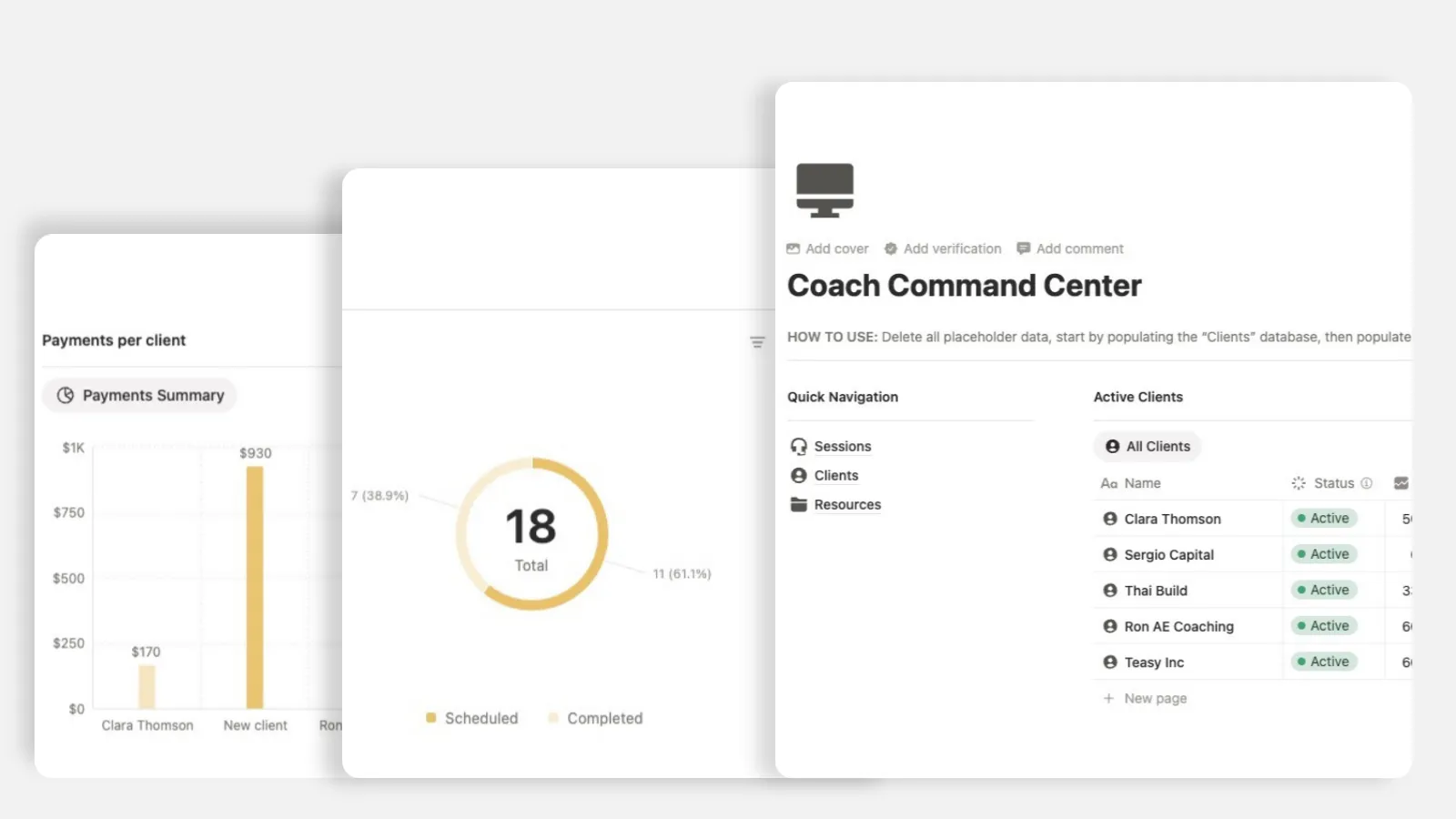
A coach came to me with her whole practice scattered across a booking tool, a notes app, and a folder of intake PDFs. Setting up Notion for a coaching business is one of my favorite builds, because the pieces fit together so naturally once you see them.
Everything in a coaching business orbits your clients, so that is where I start, you can either start from a blank page or from one of the Basic templates recommended by Notion whenever you try to create a new page. I begin from a CRM database and track the essentials: name, email, status, lead source, and last-contact date. That last field quietly runs your follow-up. With it in place, you can build a view that surfaces any client you have not checked in with in over a week, plus a calendar view showing who to reach out to on a given day. For a coach, staying in touch is the whole job, and this turns follow-up from something you try to remember into something the system shows you.
For intake, you do not need a separate form tool. Start a new page, type slash form (/form), and build an intake form from scratch. Give it a title and description, then add questions using the input types you need: text, multiple choice, date, email, phone number, and more. Every submission flows straight into your client database as a new record, ready for you to follow up. No copying, no re-typing, no leads lost in an inbox. You can also use some Notion AI help to build the form, just be aware of its limitation, for example: Notion AI cannot change most question-level settings in forms as of now.
Coaching is really a series of sessions, so your session notes deserve a real home. I use the built-in meeting-transcription feature, which works for in-person and online sessions and even on mobile. Instead of leaving you with a raw transcript, it produces a structured summary with action items and who owns each one. I walk through this exact feature, and how it changed my own client calls, in How Notion AI Meeting Notes Changed My Client Calls. Then the step that ties it all together: connect each session note to its client record using a relation property with two-way sync turned on. Open any client and you see the full history of every session you have had with them. As your client list grows, that consolidated history is what keeps your coaching personal and organized at the same time.
For sharing plans and resources, the same models from earlier apply. A private client plan goes out through free guest access. A general resource page anyone can see works as a public page, with search indexing turned off and the duplication setting checked.
How do I build a service agency client portal with confidential data?
Let's talk about agencies offering services like digital marketing agencies, law firms, etc, because confidential client work is where the sharing decision stops being a preference and becomes the whole point.
What businesses generally miss is that Notion can behave like per-client software when you use page-level access correctly. I keep every client inside one single database, and I grant each person guest access to only their own page. That client sees their own portal, their project plan, their deliverables, their meeting notes, their approvals, and never anyone else's data. This follows the first rule I give every client: One Database Per Entity. You are not building ten separate systems for ten clients. One Clients database, permissions respected in one place, and it scales as your agency grows. The security lives in how you share, not in how many pages you build.
For confidential client data, only one of the two sharing models is safe. I always use the guest route, or members route, if you want to pay for your clients to be workspace members, I'm not going to say no. Publishing publicly is view-only and far too easy to leak, so I never use it for private strategy, campaign data, brand assets, contracts, performance reports, passwords, or client documents. A link can get forwarded, indexed, or screenshotted, and once it is out there you have lost control. Guest or member access keeps everything gated behind an account you can revoke. And remember the plan note from earlier: the page-level access that lets each client see only their own page inside the shared database is a Business plan feature. For a service agency, where client confidentiality is part of the job, that is the tier worth paying for. The guests stay free.
Here is how I would set it up:
Create one Clients database. Each client is a single entry, and every entry in Notion is a full page, so that page becomes their private portal.
Inside each client page, build out what they need to see: their project plan, kickoff notes, deliverables, approvals, timelines, reports, and shared documents. Most of what lives inside will not be independent client databases, but linked views of company-wide databases, and this is very important to focus on.
Add the properties you track on the database itself, like status, account owner, start date, renewal date, and next milestone, so you manage your whole client roster from the table view while each client only ever opens their own page.
Share each client page individually by email as a guest, granting view, comment, or edit access depending on whether they need to approve work, leave feedback, or upload information.
Never publish these pages as public websites. Keep the account-based guest model so access stays controlled and revocable.
When you off-board a client, remove their guest access from that one page and their project history stays neatly in your database. Also remove their access from any other shared databases, when we handle this at a scale, with high volumes of clients, we use Database Automations to automate the off-boarding process, so we don't have to do it manually, page by page.
I also tell agencies to treat each client page as a living account record. Drop summaries, decisions, approvals, assets, and next steps right inside the page, and let it become the full history of the relationship. It is so much calmer than digging through email threads, Slack messages, and folders six months later trying to remember what was approved.
How do real estate agents run a CRM and per-buyer portal in Notion?
A realtor I worked with was juggling buyers and sellers across text messages, a spreadsheet of listings, and a calendar full of half-labeled dates. Every time a client asked "where are we in the process," she had to go dig. What she wanted was a portal where each buyer could log in, see their own listings and timeline, and stop calling her for updates. That is a very buildable thing, and it comes down to a few connected databases, not one fancy page.
Build a simple CRM
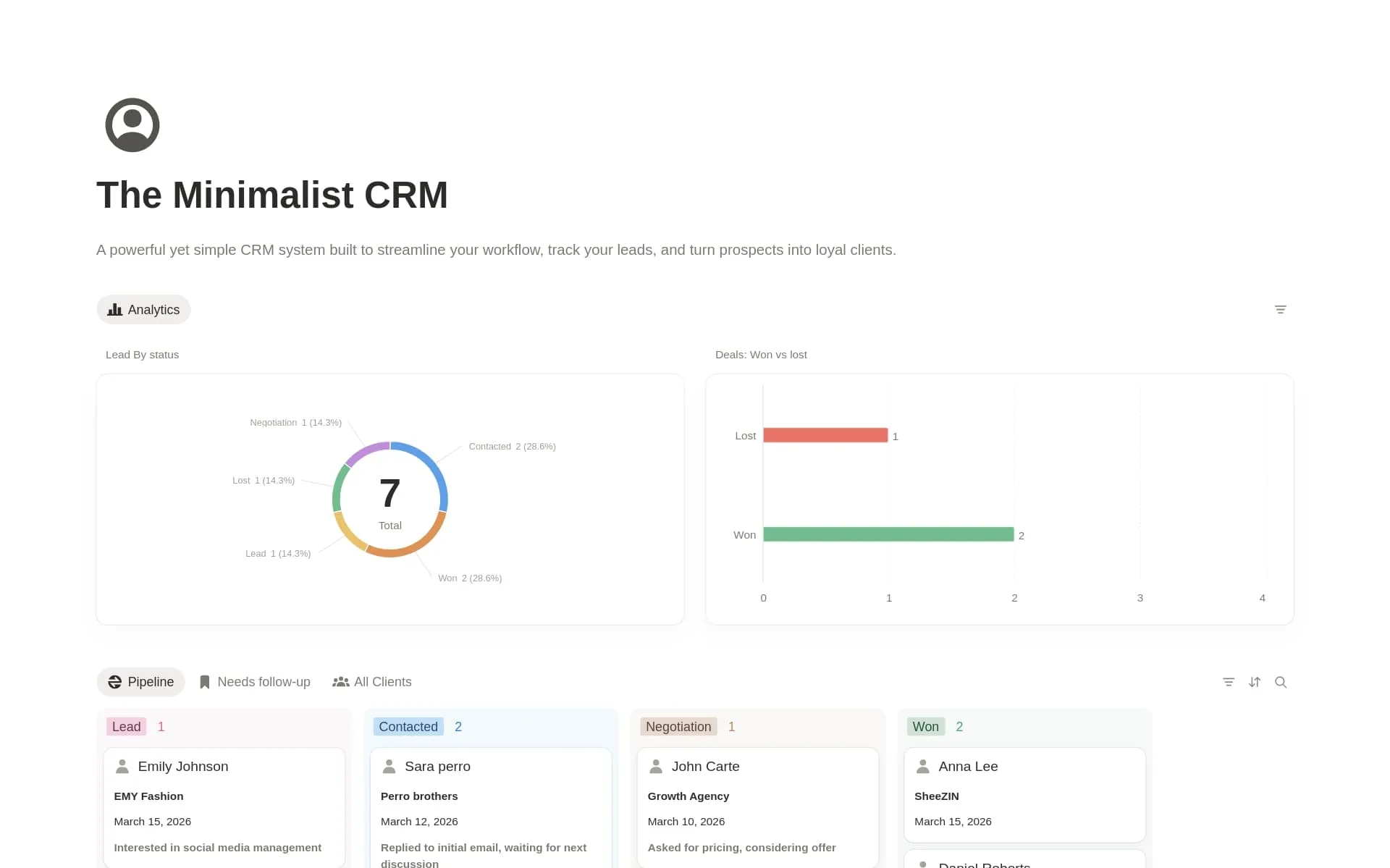
Build a simple client tracker / account-management tracker: accounts, statuses, contract values, contact information, and which market each client belongs to. From there you add the properties you need with the plus sign on top of the database (add property). Then add the views: a follow-up view filtered to surface anyone you have not contacted in over a week, and a calendar view so you can see who to follow up with on any given day. For an agent whose entire income depends on staying in touch, that follow-up view alone is worth the setup.
You can also use my own minimalist CRM template for free.
Add a listings catalog beside it
A contact CRM is only half the picture. The other half is inventory. Build a listings catalog where each property is its own entry carrying photos, tasks, documents, and checklists. Notion's built-in marketplace has a dedicated section with free, customizable templates for exactly this use case, so you rarely start empty. Each listing is a full page, so it becomes a great home for the property's photos, the inspection PDF, the contract, and a checklist of what is left before closing. One Database Per Entity applies here too: people in the CRM, properties in the catalog, and a relation property connecting them. Open a client and you see every listing they are considering. Open a listing and you see the client, its status, and its details. The same relation technique links tasks to clients too, so nothing floats around unattached.
Track every deal milestone as its own date
Real estate runs on dates, and buyers get anxious when they cannot see them. My approach is to add multiple Date properties and rename each one for its specific milestone: inspection date, contract date, closing date, move-in date. All of them sit on the same record instead of scattered across a calendar and a notebook. One detail I always get right: property-specific milestones belong inside the listings template, not on the contact CRM, because the contact record is about the person and the property record is about the deal. You can also add a filtered calendar view per milestone so you and the client can watch the timeline visually.
Note: in some real estate agencies, the workflows may be different and this basic architecture may not be the right one to start with. For example, if the operations are complex and milestones need more flexibility to manage, you'll have to create a separate database for each milestone and link it to the property page. In this case, the different dates in properties approach does not work.
Give each buyer their own private page
This is the part realtors worry about most, and rightly so. You do not want Buyer A seeing Buyer B's offer details. The answer is the same page-level guest access from the coaching setup. Keep all clients in one database, give each client their own page, and share it as a guest by email. Each person sees their own portal, their listings, their tasks, their dates, and never anyone else's data. You are not paying for them as members, and you are not building a separate workspace per client. When a buyer asks where things stand, the answer is already on their portal page. When I walked this realtor through the finished setup, she looked at it and said: "Yeah, that's fantastic. That's exactly what I want."
Why is this worth it?
When a portal is structured around one shared parent page, the right sharing model, and a couple of related databases, you get the best of both worlds. Your client sees a clean, curated space with everything they need. You keep full control of the private work sitting in the same database. No accidental exposure or duplicated data floating around.
And the operational flow gets lighter, not heavier. A new client signs, a status changes, and their checklist, project, and portal appear on their own. More clients just mean more rows in the same databases. You are not maintaining ten onboarding folders or ten sharing configurations. You are maintaining one automation, one guest-sharing habit, and one connected structure behind the scenes. That is the whole system. Start with one database and one shared page, and build the portal outward from there.
All content in this article is grounded in real customer interactions and real projects we’ve worked on, the analysis, insights, and ideas are entirely my own. AI tools may have been used to help process raw data, or to reformulate and refine parts of the writing.
Frequently asked questions
Can clients view a Notion client portal without creating an account?
Only if you publish the page as a public website, and I do not recommend that for anything personal or confidential, because anyone with the link can view it and links leak easily. Any email invite, even for a free guest, requires the client to create a free Notion account. There is no email-invite path that skips account creation, so set that expectation up front.
What is the difference between a guest and a member in Notion?
Members are the paid, per-seat users on your plan, typically your internal team. Guests are free and only see the specific pages you share with them. For clients, contractors, and outside collaborators, guests are almost always the right choice, and you should choose "skip for now" if Notion prompts you to upgrade them to a member when you don't want to.
How many clients can I invite as guests for free?
On the free plan you can invite up to 10 guests by email to edit or collaborate directly in a page. On paid plans you can invite unlimited guests at no per-seat cost. Either way, guests do not add to your bill unless you accidentally upgrade them to members.
Can free guests edit pages, or only view them?
Guests can be granted full editing access, not just read access. That means a client can fill in intake details, update fields, and leave comments on the pages you share, while everything else in your workspace stays invisible to them. You choose view, comment, or edit per page when you share it.
Do I need the Business plan to build a client portal?
Not for a basic portal. A parent page shared with one guest works on any plan. The Business plan matters when you keep many clients in one database and need page-level access, so each client sees only their own page and never another client's data. If client privacy is central to your business, that is the feature worth paying for.
How do I trigger an onboarding checklist when a client signs?
Use a database automation in your Clients database with the trigger "when Status changes to Client." Set the action to create the onboarding tasks or the client project, with property variables pulling in the client's name and details automatically. Test it once with a dummy contact before relying on it.
How do real estate agents track inspection, closing, and move-in dates?
The simplest way is to add multiple Date properties to the listing record and rename each one for its milestone: inspection, contract signing, closing, move-in. Keep those date fields on the listings template rather than the contact CRM, so each property carries its own timeline. A filtered calendar view per milestone lets you and the buyer watch the timeline visually.
Is a public Notion page ever the right choice for client work?
Yes, for genuinely non-sensitive content like a shared project status or a general resource page. If you publish one, turn off the search-index option so search engines cannot find it, and check whether duplication is enabled, because that setting lets viewers copy the content into their own workspace. For anything personal, use guest access instead.