
Published:
·
updated
19 min read
My practical guide to notion formulas: know when to reach for a rollup vs a formula, and stop counting, calculating, and copying values by hand.

A content creator I worked with was counting everything in her head. She wanted to know how many pieces of content used each of her proven hooks and whether she was posting enough on each social platform while tracking her social media content in a Notion Content Tracker, she didn't want just the total counts, she also wanted a live field that provides conditional feedback based on the count. So every week she scrolled her content database and counted by hand. The number was always a little wrong and always a little stale. She asked me if Notion could just count it for her. It can, and the tools that do it are the same ones behind almost every question in this guide.
I saw the same problem with a digital marketing agency that was already logging time on tasks. The data existed, but the owner still had to open the task list, filter by month, filter by client, and add up the hours manually before sending updates or checking profitability. We added a reporting layer that counted only completed work and rolled the hours up by client and by employee. Suddenly the question was not "let me calculate December again," it was "show me this month's total," and Notion answered it live.
So basically, Notion formulas are code-based properties that calculate values from your data, and they recalculate on their own every time an entry changes. They work alongside two other tools, relations and rollups, and the whole system fits in one sentence. The relation connects your databases, the rollup summarizes what is linked, and the formula calculates, transforms, and reaches across. Once you know which one does which job, counting items, grouping tasks, working day deadlines, and cross-database lookups all become small setups. You do them once, and you never count anything by hand again.
What is the difference between Notion formulas and rollups?
One of my clients spent an entire afternoon fighting with a rollup, trying to make it calculate how many days were left until each project deadline. It kept giving her a count or a sum, never the answer she wanted. The problem was not her setup. She was reaching for the wrong tool.
A rollup is excellent at one specific job. It summarizes linked records. If you want to count the tasks tied to a project, sum a column of invoice amounts, or show a percent complete, a rollup is the cleanest option. It pulls live data from the linked records, so the number updates itself with no manual recalculation.
A formula is the complex calculator. It handles date math, time-remaining calculations, conditional logic, custom text, and formatting. It also does the one thing that surprises people most, it reaches across databases to pull a value in. My client's days-until-deadline problem was never going to be a rollup, because that is date math, not aggregation. A rollup simply cannot express it.
Tool | What it does | Reach for it when |
Relation | Connects records across two databases | Always first, it is the road the other two travel on |
Rollup | Summarizes linked records: count, sum, average, percent | You need a sum or a progress number from related records |
Formula | Calculates, transforms, and reaches across databases | You need date math, conditions, custom text, or a value from another database |
Here is how I decide:
Counting, summing, or averaging linked records, use a rollup.
Lightweight progress reporting per project, use a rollup tied to your task statuses.
Date math, like days remaining or time since a milestone, use a formula.
Pulling a specific field from another database, use a formula. It is the only bridge.
Conditional logic, formatting, or custom text, use a formula.
Often I use both together, a rollup to gather the raw count and a formula to shape it into something readable. Reaching for the wrong one is what makes Notion feel broken when it is not. Once you know that a rollup summarizes and a formula calculates, the whole system opens up, and you stop fighting the tool.
You do not have to write the code
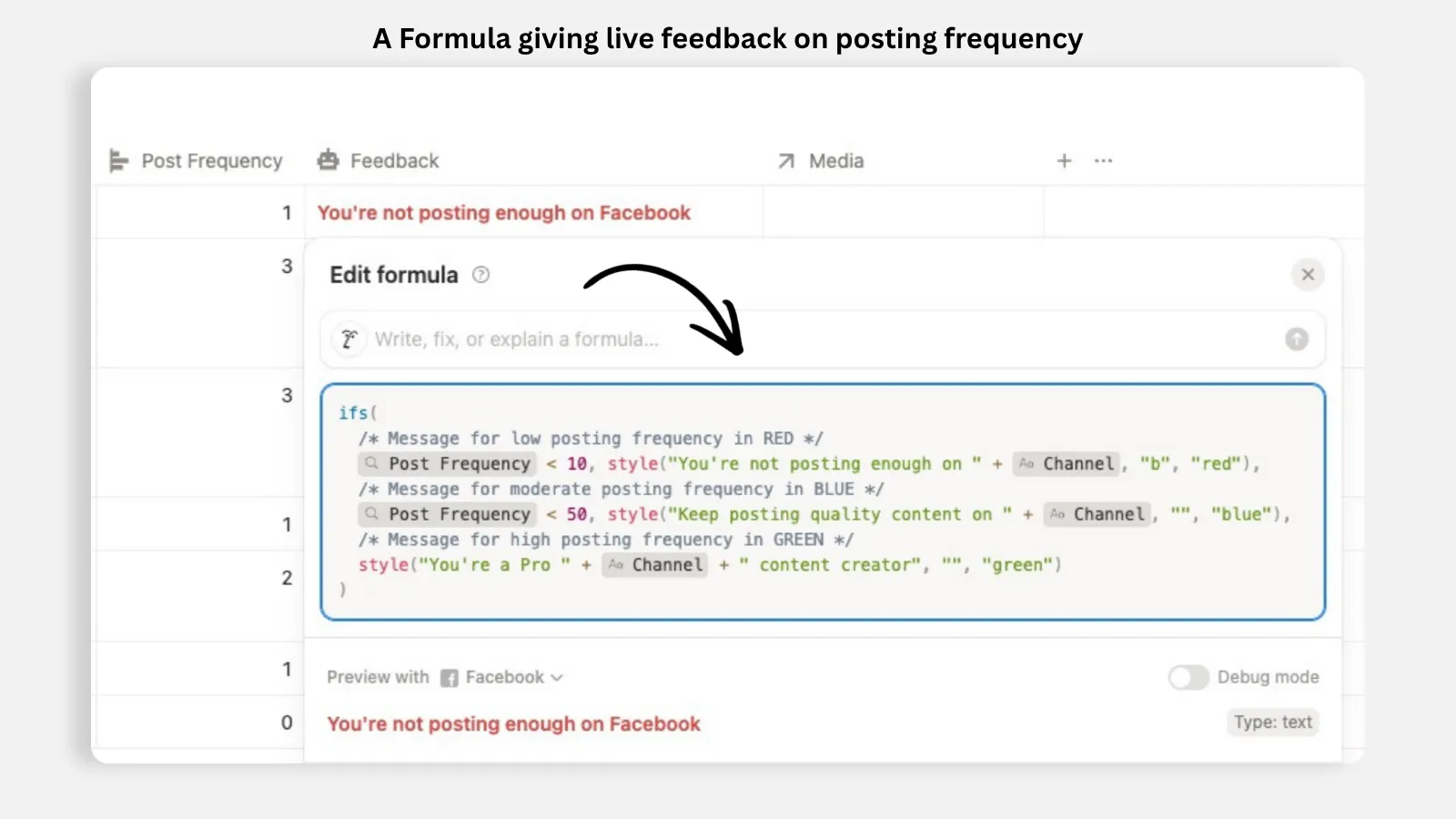
One thing before the walkthroughs, because the word formula scares people off. You do not need to learn the formula language anymore. You describe in plain language what you want, and the AI generates the logic for you, including filtering, referencing other databases, and producing calculated values or text.
The formulas are still code-based underneath, and they still recalculate automatically whenever an entry is added or changed. So you get the automated computation without writing a single line. I have watched non-technical clients build advanced cross-database calculations in a couple of minutes, just by explaining what they were after in a full sentence. You describe the outcome, you review what comes back, and you adjust the wording if the result is off. So when I say learn formulas, I do not mean memorize a manual. I mean understand what they are for, and let the AI handle the syntax.
How do I count the number of items in a property?
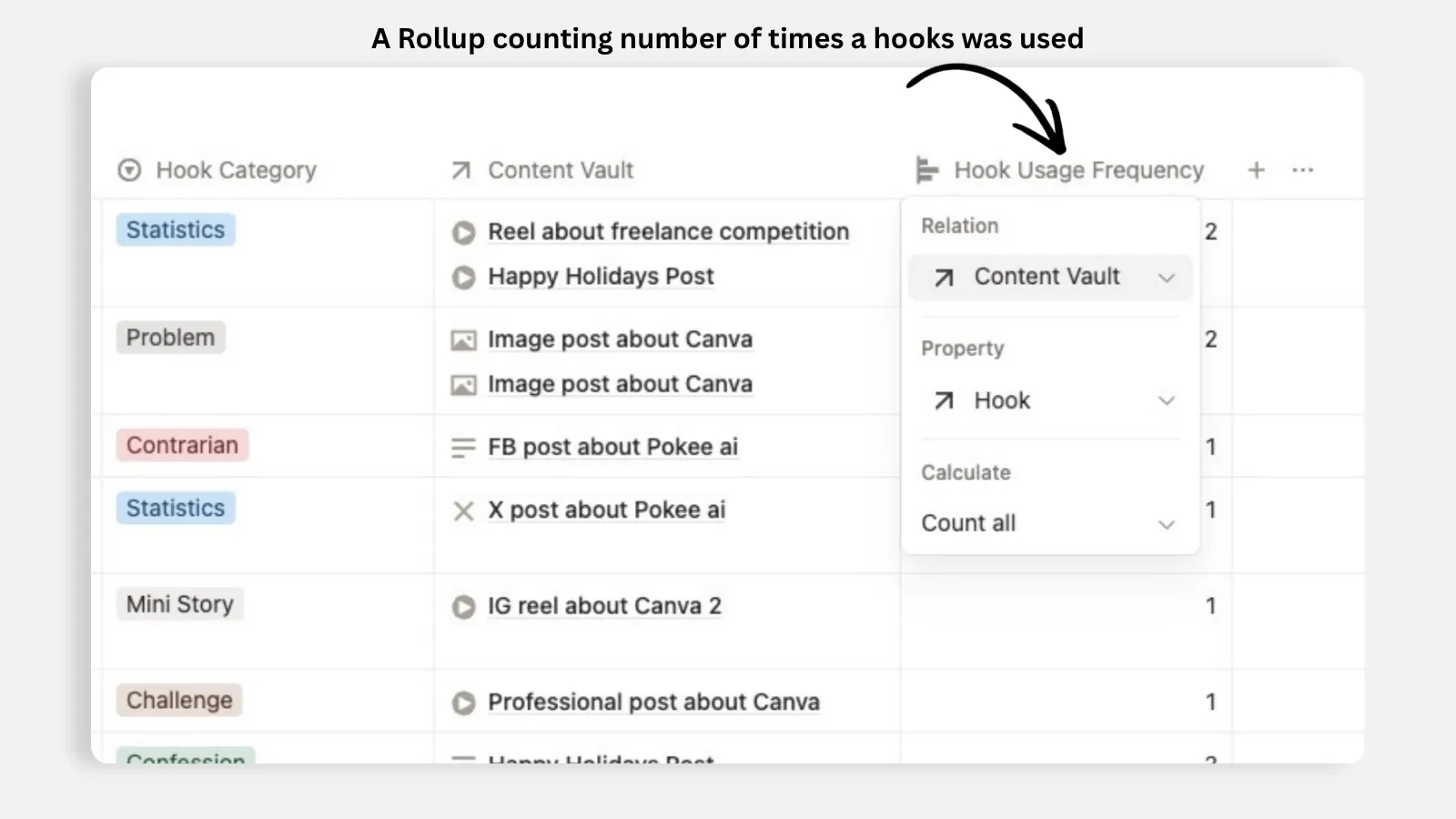
Back to my content creator and her struggles. Counting almost always starts one step earlier than people expect, with a relation. If you want to count how many linked items sit in a property, that property is usually a relation, and the tool that counts across a relation is a rollup, not a bare formula.
For her, we stored the proven hooks in their own database and linked each piece of content to the hook it used. Then, on the hooks database, a rollup counts how many content items point back to each hook. Every hook now shows its own usage count, updating live as she publishes. Performance data that used to live only in her head became analyzable over time.
Here is how I would set it up:
Create a relation between the two databases.
On the side where you want the total, add a rollup pointed at that relation.
Set the calculation to Count for all related items, or Percent for a proportion.
To count only matching items, target the relevant property, like status, and count that value.
If you are counting inside a text or multi-select property on the same record, use a formula property instead, and describe the count to the AI.
The same mechanism builds project progress. On a projects database, I add a rollup that points to the linked tasks, targets the task status, and calculates the percent of completed tasks. Rename it "Progress," display it as a progress bar, and it updates every time a task is marked done. Leadership gets a live view instead of hand-built status updates. I walk through that exact build, no-code, in How to Make a Progress Bar on Notion (No Code).
When this content creator watched the count update itself the moment she published a post, she told me, "That is awesome. That's super helpful. Yeah, because that's way easier than the way I was doing it." You set it up once, and the number keeps itself updated.
How do I organize my database by client or project?
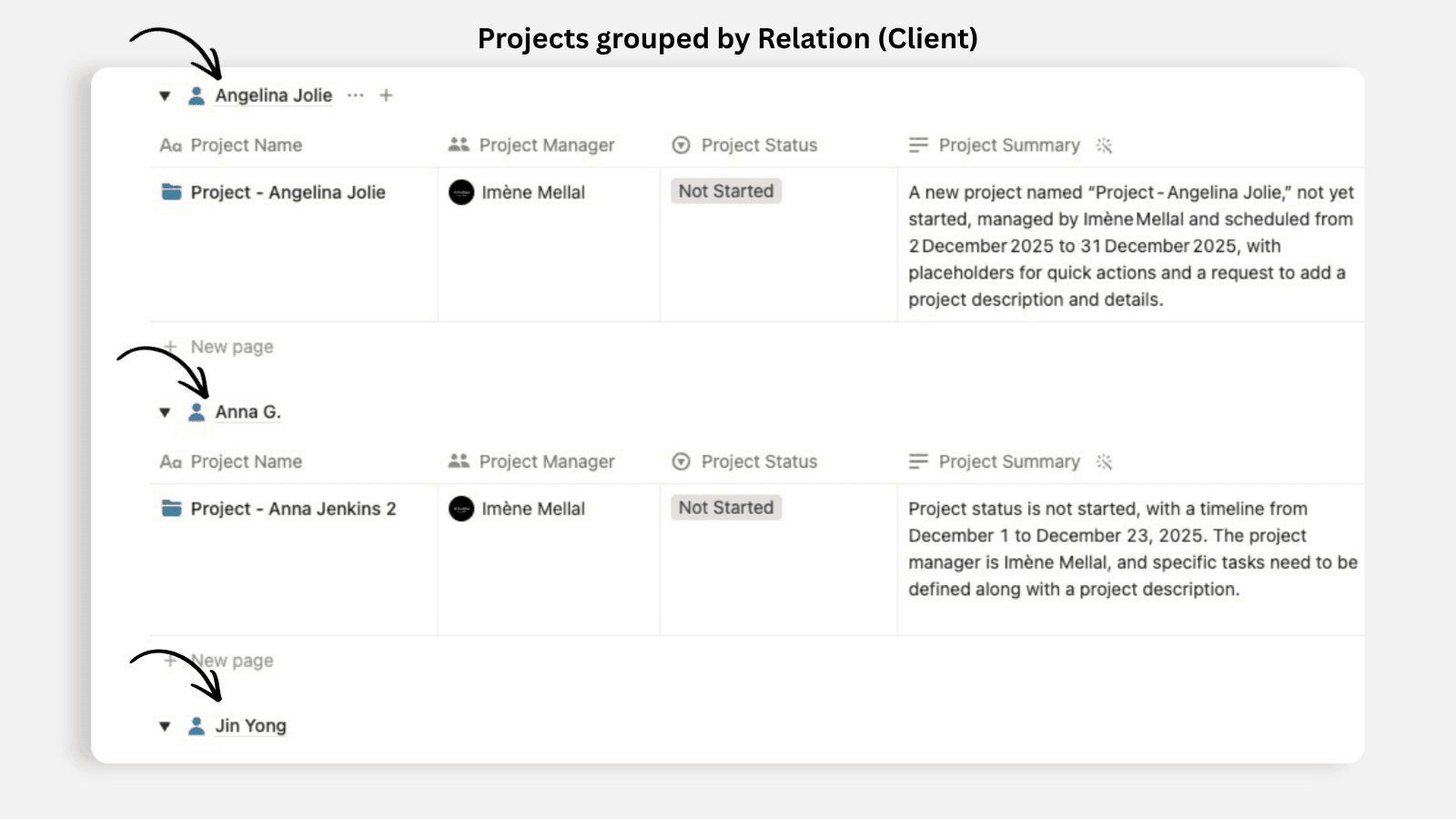
A client with a growing agency told me her task database had become unusable. Close to two hundred tasks, a dozen clients, one long wall of rows. She asked, half joking, whether she needed a separate database for each client.
My answer was no. This is a rule I give every client: Views, Not New Databases. Instead of fragmenting the data, you use the group-by setting on the view. On her tracker, we grouped by the linked client relation. All the tasks clustered under each client, with unlinked tasks falling into a tidy "no client" group at the bottom. One view, every client visible, no duplication.
Grouping is a view-level choice, and that is the safety net. Editing a view, its grouping, layout, or design, only affects that single view. It never touches the underlying data or your other views. However, deleting a record removes it everywhere, because all views share the same source. So I can build a board grouped by client for her and another grouped by status for her project manager, both reading from the same two hundred tasks, and nobody steps on anybody.
For status boards, a little bit of housekeeping. Reorder the groups so "To-Do" sits first, where the work happens, and hide the completed groups entirely. Removing finished work from view keeps attention on what still needs to be done. That small habit is what separates a board people use from one they quietly abandon.
What if the property I want to group by does not exist?
Sometimes the grouping you want is not a property yet. You want "Overdue," "This Week," and "Upcoming," but you only have a raw deadline date. A view can only group by a property that exists, so you create it with a formula. The formula looks at the deadline and outputs a clean text bucket, and you group the view by that property. The buckets update themselves as dates pass, because the formula recalculates whenever the data changes. Describe the buckets to the AI, group by the result, and that is the whole workflow.
When my agency client saw her wall of rows arranged into a clean overview, she said, "That is awesome. What a cool way to organize everything." The database was never the problem. The way it was displayed was. And this is the same problem many other business owners are still facing everyday.
How do I calculate working days to a deadline?
Another client came to me counting deadlines by hand. Every Monday she opened her project tracker and mentally worked out how many working days were left on each deliverable. Weekends threw her off, and she missed a couple of client deadlines doing math that Notion can do for her.
A working days formula takes a start date and a deadline and returns the number of business days between them, or the number of working days remaining from today. No more counting on your fingers, no more forgetting that Saturday and Sunday should not count.
One honest limit first. A template alone will not do this. Notion templates can pre-fill a fixed choice like "today" into a date property, but they cannot set a relative due date such as "three working days from creation." A deadline that calculates itself only comes from a formula.
Here are the situations where I add one:
Time remaining on a deliverable. A property that says "5 working days left" is a more honest picture than a calendar count that includes weekends.
Lead-time reminders. For predictable recurring work, like reordering supplies or prepping a monthly report, set the item up as a recurring task and let a formula count back from the typical delivery window, so the system notifies you to start in time instead of you tracking it in your head.
Turnaround tracking. Measure how long something actually took from start to finish in business days, weekends stripped out automatically.
Here is how I would set it up:
Add a new property to your task or project database and choose the Formula type. It is the same plus button you use for any field, from the database header or inside a record.
Decide what you are measuring, start date to deadline, or today to deadline.
Describe the logic to the AI, for example "count the weekdays between the start date and the deadline, excluding Saturdays and Sundays."
Rename the property so it reads clearly, like "Working days left."
Surface it on the views where you make decisions, your board or your calendar.
It is a five minute setup, and it removes a weekly chore forever. Your database stops answering "what is the due date" and starts answering the question you actually care about, "how much real working time do I have left."
How do I pull data from another database?
A question I hear constantly: "The client's email lives in my pipeline database, but I need it in my projects database so an automation can send to it. How do I get it to show up there?" The answer is a formula inside the "send email" action in the automation window, this is if you want to do it directly from there. You can also use a rollup here to surface the email on the project, but keep in mind that pulling the email directly to the formula inside the automation will keep the type of the property "email" and make the send easier.
But a Notion formula cannot reach into another database out of nowhere. It needs a connection to travel along, and that connection is a relation. I always set this up as a two-way relation rather than a one-directional link, so the same connection is visible from both sides and nothing gets siloed. And there is no limit on how many databases you can link together, so finances, invoices, or any other workspace database can join the same web. The relation is the road. The formula is the car that drives across it. This is the exact same mechanism behind cross-database automations, which I break down in Notion Automation Setup: Real Use Case.
Here is how I would set it up:
Add a relation between the two databases, and make it two-way so it shows on both sides.
Link the actual records, so each project is tied to its matching pipeline entry.
Add a formula property in the database that needs the borrowed value. (you can also use a simple Rollup in this specific case, but keep in mind that the rollup will not give you the flexibility to add to or transform the value, rollups are simply mirrors of what's on the other side, and they are limited, for example you cannot rollup a rollup.)
Describe what you want to the AI, for example "show the linked client's email from the pipeline."
Point your automation at that formula property. The value is now available exactly where you needed it.
The formula could look something like this:
prop("Pipeline").map(current.prop("Client Email")).first()
Where:
Pipeline= the relation property from Projects to Pipeline
Client Email= the email property inside the linked Pipeline record
.map()travels through the relation
current.prop("Client Email")grabs the email from each linked record
.first()returns one email, which is usually what you want for an automation recipient
The mental model I give clients is simple. The relation connects, the rollup summarizes and surfaces information as it is, and the formula reaches across and transforms. Get the two-way relation in place first, then let the formula do the reaching, and a data-sync problem that felt impossible becomes a single property you set up once and never touch again.
Note: if the use case is simply surfacing the information with no complex workflows, a rollup may be enough in this case. Just make sure you know what you need to do next.
How do I create a unique ID for tasks and tickets?
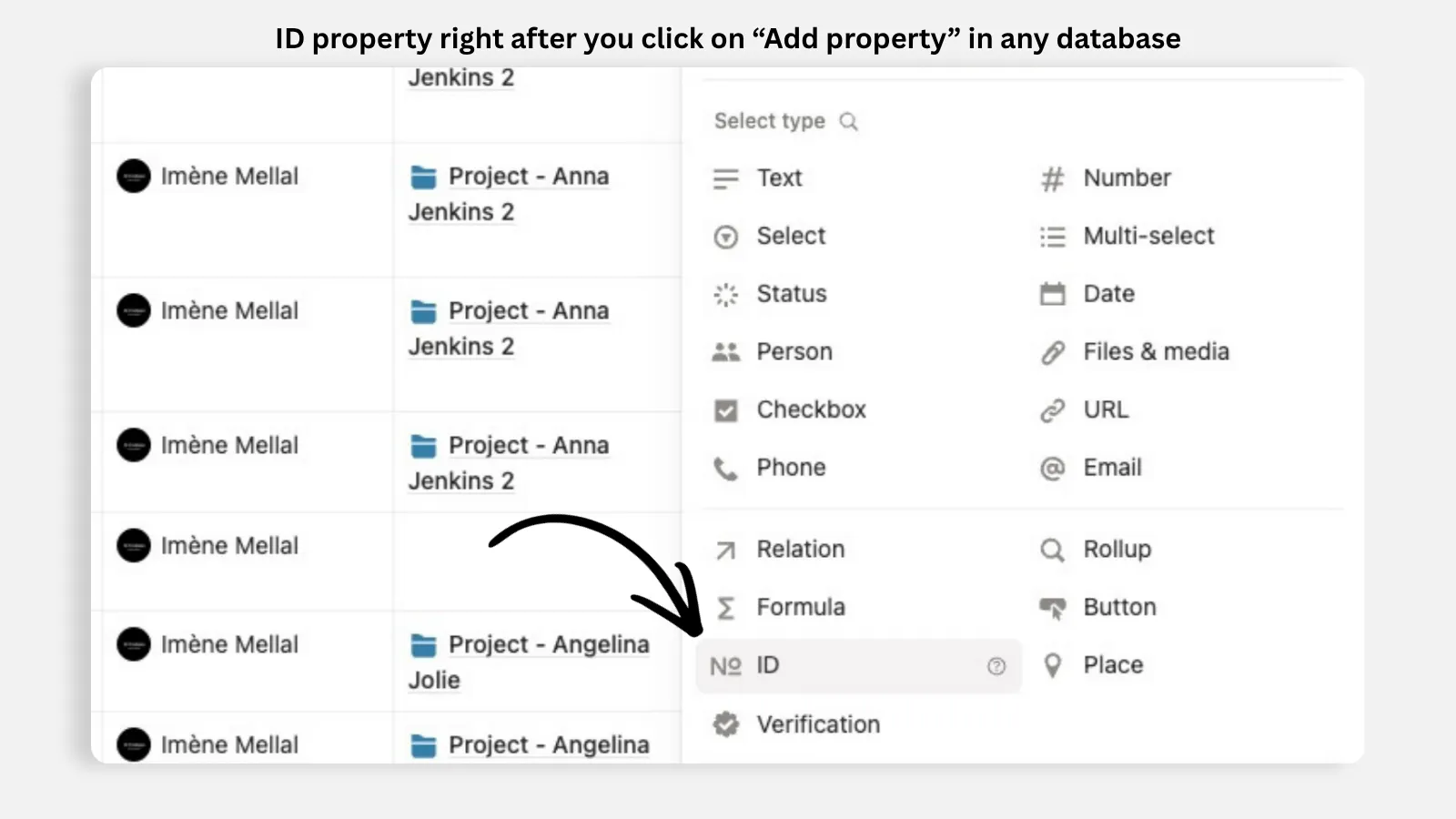
A client who runs a small dev shop wanted every bug and every task to have its own reference number, like TASK-1 or BUG-14, so her team could point to "ticket 47" in a meeting without confusion. She assumed she would need a clever formula or a third-party tool. She did not. Notion does this natively, and the setup takes about a minute.
A unique ID is a property type that assigns each entry an auto-incrementing number. The first record gets 1, the next gets 2, and you can add a short prefix so they read as TASK-1 instead of a bare number. Notion manages the counter for you. You never set the number, it cannot be duplicated, and the numbers stay unique and sequential no matter how many people are adding records at once.
The IDs live at the database level, which is exactly why they stay meaningful. It comes back to a rule I give every client: One Database Per Entity. Your tasks database has its own sequence, your issues database has a separate one, and they do not collide.
Here is how I would set it up:
Open the database that needs reference numbers.
Click the plus or Add property button, from the database header or inside a record.
Choose the ID property type. Notion starts counting from your existing rows.
Set a short prefix like TASK or BUG, so the values are easy to say out loud and easy to search.
Show the ID column on the views your team actually looks at.
One more piece of advice before anyone builds a tracker around this. It is another rule I give every client: Template-First, Never Blank-Page. If you want reference numbers on tickets, you almost certainly want the rest of an issue tracker too. The pre-built issue tracking template ships with ready-made statuses, an issue type, a priority, and useful formulas, including one that auto-calculates how many days a ticket has been open. Start there and customize, rather than rebuilding all of that by hand.
Note: Basic templates show up whenever you click "new page" in your workspace, and you can choose one of them easily, instead of starting from an empty page. I'm talking about the basic ones displayed officially by Notion, not the Notion Marketplace, which is another story for another day.
And when is an ID worth it? Add one when records get referenced out loud or in other tools, tickets, bugs, invoices, orders, support requests. Skip it for personal to-do lists and content calendars, where you will never say "go look at item 38." The point of a unique ID is unambiguous reference. If your workflow does not need that, do not bother.
Can you merge cells in a Notion table?
One day, another client emailed me a little frustrated after twenty minutes of hunting for the merge button. She had come from Excel, where merging cells to make a header span a few columns is second nature. I gave her the honest answer first. Notion tables are not built for merged cells. Then I gave her the better news, which is that the layout she actually wanted was easy to build a different way.
Notion has two kinds of tables. There is the simple inline table, a basic grid of text, and there is the database, which looks like a table but where every row is a real record with typed properties. A database will never merge cells, and that is by design. Every row has the same columns on purpose, because that structure is what makes filtering, sorting, and views possible.
So the trick is to figure out what you were trying to do by merging, and solve that instead. In my experience it is one of three goals:
A header that spans the width. You need room and structure, not a merged cell. Open the three-dot menu at the top right of the page and toggle Full width, because narrow pages waste screen space. Then put a real heading block above the table as the spanning title.
A side-by-side layout. Build a two-column layout and add dividers to separate sections. You can drag the columns to resize them, and you can link to other pages with the @ mention to turn the same layout into a small navigation hub.
A genuine spreadsheet grid. If you truly need spreadsheet behavior, that content belongs in a spreadsheet. You can embed a Google Drive file in a page, but be selective. Embeds work well for PDFs and text documents, while spreadsheets render too small to read and are better opened at the source. So link out to the sheet instead of forcing Notion to imitate it.
One related tip. If the table is headed for a PDF, switch the page to full width first, then lower the export scaling percentage so a wide table stays readable in the export. That gives you a clean shareable file without anyone needing a Notion paid seat.
Merged cells feel tidy in a spreadsheet, but they quietly break sorting and make copying painful. Notion pushes layout into blocks, columns, and headings instead, which you can rearrange freely. That is what won my client over. As she put it, "I kind of like the flexibility and the ease at which you can modify things."
How do I build a clean database from scratch, without pages?
A client who runs a small services business searched the template gallery for a services tracker and found nothing that fit. Everything was a bloated project system or a CRM aimed at a different workflow. She wanted a clean table of her services, each with a status and a price, and nothing else.
I usually say Basic-Template-First, but the rule has an honest exception. When no template exists for what you need, do not force a mismatched one. Create an empty database from scratch and define your own properties. For her tracker, that meant choosing the columns herself: a status with "active" and "inactive," a service type, who is responsible, pricing, and a frequency of monthly or annual. Nothing borrowed, nothing to delete, nothing to fight. If databases and properties are still new territory for you, start with My Ultimate Guide to Notion: Start Small and Let It Grow before building your own from scratch.
Now, the "without pages" part. In Notion, every row in a database is technically its own page. You can click any row open and it expands with space for notes and content. But you do not have to use that. If all you want is a grid you fill in cell by cell, you work in the table view and never open the rows. It is just like a spreadsheet, and you are already there by default.
The trap to avoid is the opposite one. If a page was originally created as a full-page database, Notion will not let you add other content beneath it, which blocks you from building anything around it later. So if you think you will ever want text, headings, or several sections on the same page, create a normal empty page first and add the database inside it as an inline database. That keeps your options open.
Two more habits that keep it clean:
Duplicate without content. When you want a second tracker with the same shape, duplicate the existing database without content and rename it. You inherit all the properties and configuration with an empty dataset, instead of rebuilding fields by hand.
Resist over-building. Define the handful of properties the work genuinely needs, and add more only when a real need shows up. A lean database you understand completely beats a fancy one you are afraid to touch.
And keep One Database Per Entity as the backbone. Every distinct thing you track, projects, tasks, invoices, services, gets its own database, structured like a table with multiple views, and the databases link together with relations so a record in one stays connected to its matches in another.
Why is this worth it?
Once these pieces are in place, your databases start answering the questions you actually care about. How many times has this hook been used. How much real working time is left. Which client does this task belong to. What email should this automation send to. You do not count, you do not do calendar math, and you do not copy values between databases. The relation connects, the rollup summarizes, and the formula does the rest. It is nothing complicated. Start with one small setup, a count or a working days property, and add the next piece when a real need shows up.
All content in this article is grounded in real customer interactions and real projects we’ve worked on, the analysis, insights, and ideas are entirely my own. AI tools may have been used to help process raw data, or to reformulate and refine parts of the writing.
Frequently asked questions
How do I count items in a multi-select or text property in Notion?
A rollup only counts across a relation. If the items live inside a property on the same record, like a multi-select, add a formula property instead. Describe the count in plain language to the AI, and it generates the logic for you.
Can a rollup calculate days until a deadline in Notion?
No. A rollup summarizes linked records with counts, sums, averages, and percents. Date math is a formula job. A formula compares today against the due date and returns the number of days left, updating on its own.
Can a Notion template set a due date a few days after creation?
No. Templates can pre-fill fixed choices like "today," but they cannot set a relative due date such as "three working days from creation." If you need a deadline that calculates itself, use a formula property.
Why does my formula return nothing when pulling from another database?
Usually the relation is missing. A formula needs a relation to travel along, and the records have to actually be linked. Create the two-way relation first, link the records, and then point the formula at it.
Is there a limit on how many databases I can link together?
No. You can connect tasks, projects, finances, invoices, or any other workspace database into the same web of relations, and a formula can pull values anywhere inside it.
Do unique IDs stay unique if several people add records at once?
Yes. Notion owns the counter, so the numbers stay unique and sequential no matter how many people are adding records. You never set or repair the numbers yourself.
Can I embed a spreadsheet instead of merging cells in Notion Databases?
You can embed Google Drive files in a page, but spreadsheets render too small to read and are better opened at the source. Embeds work well for PDFs and text documents, so link out to heavy sheets instead.
Does changing the grouping in my view affect my teammates' views?
No. Editing a view, its grouping, layout, or design, only affects that single view. But deleting a record removes it from every view, because all views share the same source.