

Published:
·
updated
17 min read
Leaving ClickUp, Coda, Airtable, or Monday? Here is how I migrate to Notion with CSV exports plus Notion AI, so your relations survive and the old mess stays behind.

A client came to me last quarter ready to migrate to Notion from ClickUp. The team had outgrown it, they wanted their tasks, docs, and knowledge in one place and most importantly in a fully customized system, so they asked me to run the whole migration for them. Her biggest fear is the one I hear on almost every migration project. She was afraid she would lose the links between her tasks and projects, or drag years of accumulated mess into a clean new workspace. But both fears are avoidable.
So here is the direct answer, because it is the same whether you are leaving ClickUp, Coda, Airtable, or Monday. To migrate to Notion, export each table or board as its own CSV, import each file into Notion as its own database, then hand the original CSVs to Notion AI and ask it to rebuild the relations between them. This is the best solution when the tool does not have a native importer to Notion or does not allow you to export your data with relations already linked out.
Move only the data you actually use, and connect the rest where it already lives. Everything below is this method applied to your specific tool, plus the export, offline, and file questions that come up right after the move.
What is the right way to migrate to Notion?
Basically every migration I run, whatever the source tool, comes down to three moves.
Decide what deserves to move.
Bring the data in with CSV files when a native Notion importer does not exist.
Then let AI rebuild the connections between your databases.
It is nothing complicated, but the order matters.
This may sound counter-intuitive, but the first move is deciding what not to move. The instinct is to bring absolutely everything across. I almost always push hard against this. I recommend importing only the subset of data you will genuinely search, query, or work with going forward. The archives, the completed projects from two years ago, the lists someone made once and abandoned, should be left out. In case you need old data later, keep it where it lives and connect it instead of relocating it (Notion AI Enterprise search is a good solution here). Migrating less data is the difference between a clean new system and a fresh copy of the same old mess. Remember that it’s counter-intuitive to move the mess to a new system.
The second move is the export itself. Do not copy-paste cells by hand. Export the data as a CSV and import it directly into Notion, or hand the CSV to Notion AI and have it populate the database for you. It is fewer steps and far cleaner, and you can instruct the AI to skip duplicates as it imports.
The third move is rebuilding the relations. It gets its own section, because it is the part most people get wrong.
Here is how I would set up any migration, in order:
Audit the old workspace and decide what is active and worth moving versus what is archive.
Export each table, list, or board you are keeping as its own CSV file.
Import each CSV into Notion as a separate database.
Tell the AI to skip duplicates during the import so nothing lands twice.
Hand the original CSVs to Notion AI and ask it to rebuild the relations and fill in assignee or owner fields.
Start simple, and only add views, dashboards, and automations once the core system feels solid.
Spot-check a sample of records on both sides of each relation to confirm the links mirror correctly.
Why did my relations disappear after the import?
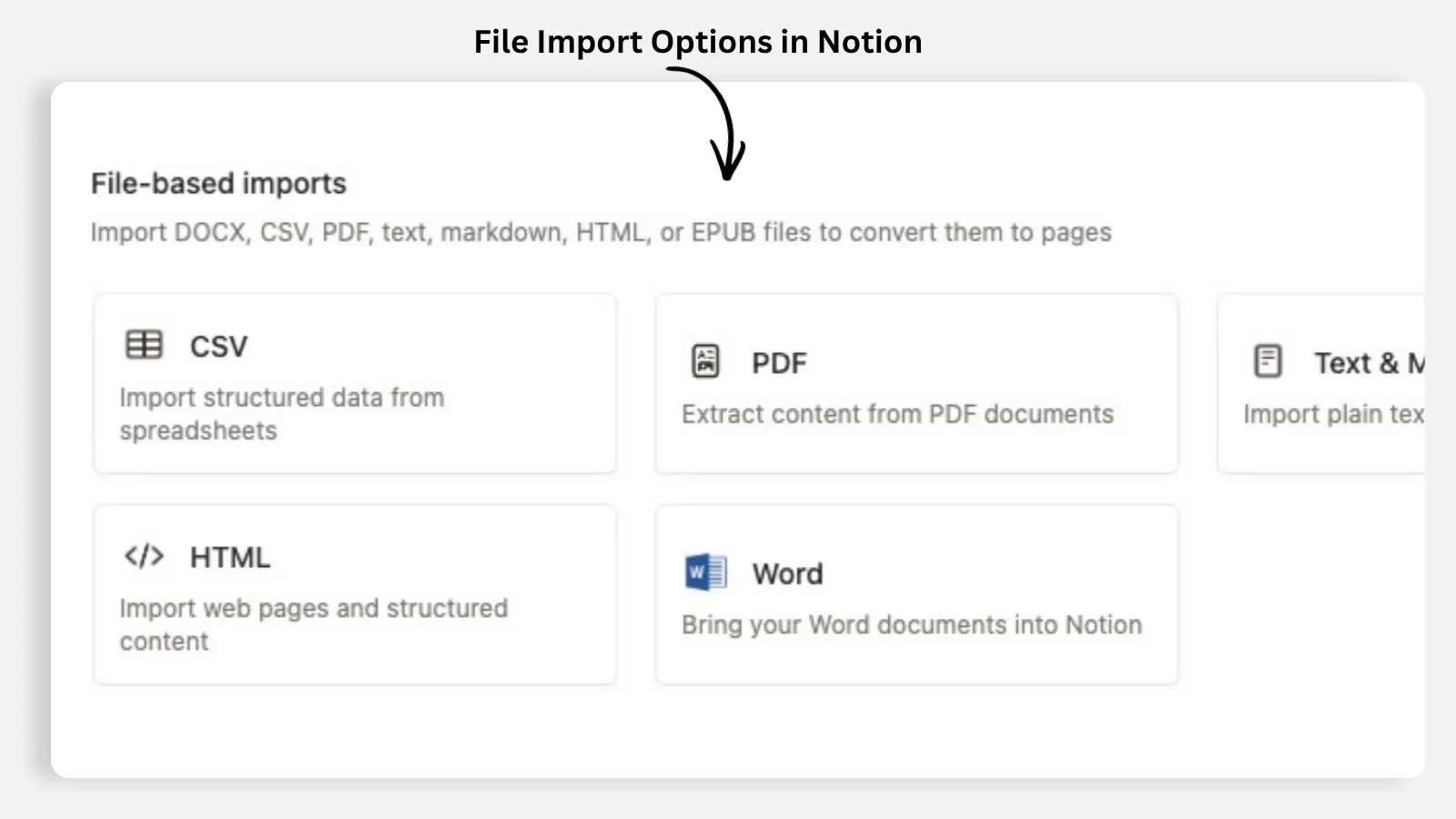
Here is a critical piece of information you should know. When you import data into a workspace that relies on linked databases, the native import will not populate your relation properties. It cannot connect two separate databases to each other during a single import. So your task-to-project and task-to-client links come across empty. This is where people assume the migration failed. It did not. The import reads one file at a time, and the linking is simply not the import’s job.
This is also not a reason to consolidate everything into one giant sheet to survive the import. The first rule I give every client on a migration is One Database Per Entity. Tasks in one database, projects in another, clients in a third, exactly the way they were separate tables in the old tool. You differentiate with tags and relations, not by mixing entities together. If relations and rollups are new to you, I break down how they work together in Notion Formulas, Rollups, and Databases Full Guide.
A reliable fix here would be a combination of import plus AI. I never try to force the relations through the import itself. I import each dataset separately first, then I feed the original CSV files back to the AI and ask it to create the relations. Because the CSV still holds the linking columns, the AI reads who belongs to what and rebuilds the connections, and it correctly populates name-based fields like an assignee or owner.
If you are on a software team that handles bulk imports again and again, you can write your own custom importer using Notion’s API, which lets you fully control and automate relational imports. It needs a developer (or a vibe coder for that matter, welcome to the Age of AI), so I only recommend it when the volume justifies it. For a one-time move, import plus AI wins on effort vs reward.
How do I run a ClickUp export to Notion?
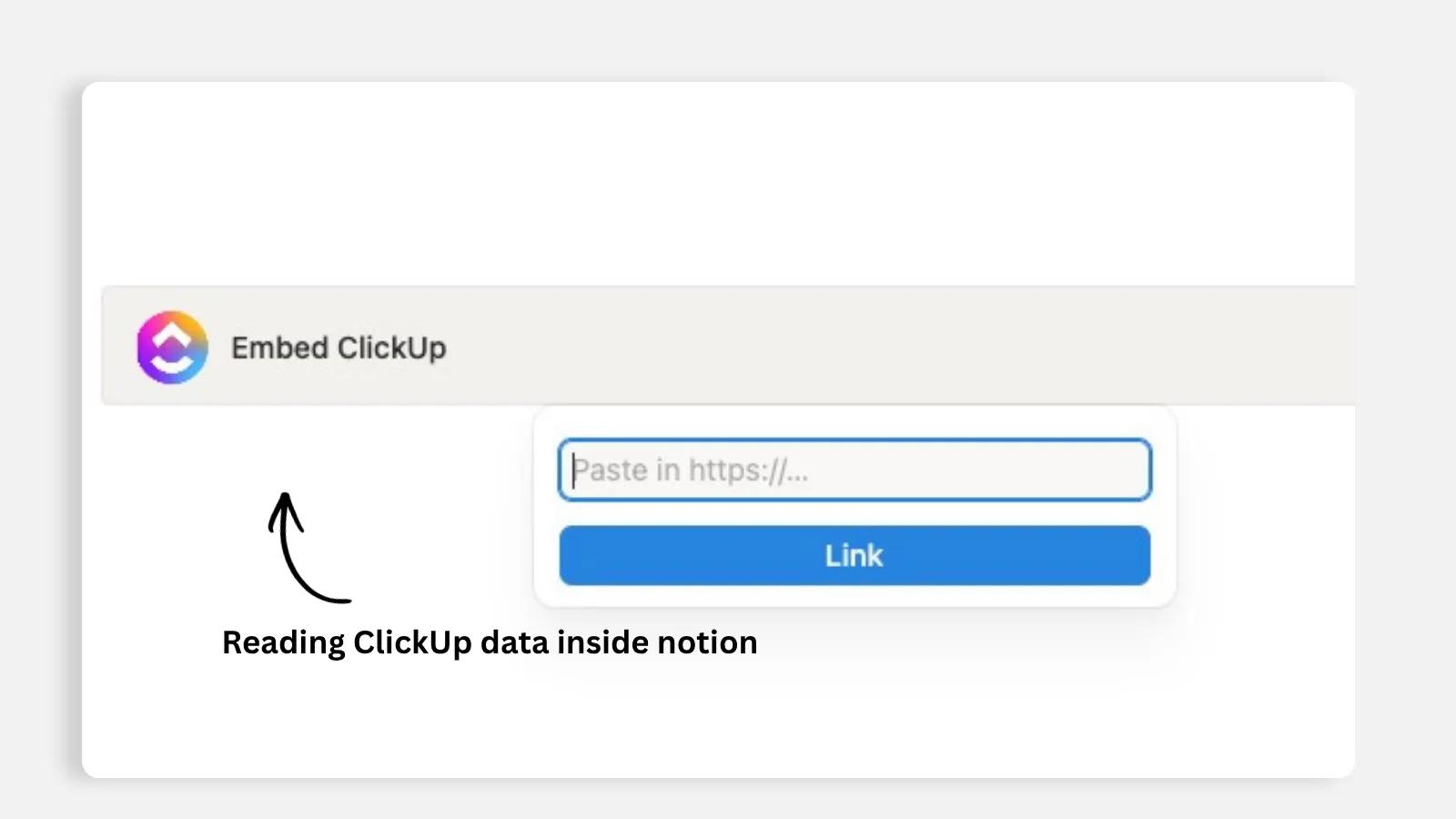
For ClickUp, before you export a single thing, answer one question: what do you actually use? Then export each list or space you are keeping as its own CSV, import each one as its own database, and let the AI relink tasks to projects and projects to clients from the original files.
Do not import a messy ClickUp export into an elaborate purchased template you do not fully understand, and do not try to replicate some influencer’s giant dashboard on day one. A migration is the perfect moment to simplify, not to add new confusion on top of old one. Keep the structure simple, get comfortable with how Notion works, and add features gradually. That start-small approach is the whole idea behind My Ultimate Guide to Notion: Start Small and Let It Grow.
The client I mentioned at the start had been bracing for a week of manual data entry. When she watched the relations rebuild themselves, she told me:
“That is awesome. That’s super helpful. Yeah, because that’s way easier than the way I was doing it.”
That is the whole point.
Should you migrate from Airtable or connect it to Notion?
Almost every relational Airtable base I get handed looks the same. Neat tables, tidy columns, and a web of links connecting contacts to projects to invoices. The owner attempts a quick weekend migration, and on Monday every relationship between the tables has quietly vanished. That is the same relation problem from above, and the same method fixes it. Export each Airtable table separately as a CSV, one table, one file. Import each as its own database. Recreate the empty relation properties, then ask Notion AI to link the records across them. Spot check a few entries, confirm a few clients tie back to the right projects, then trust the pattern.
But with Airtable there is a decision before the mechanics, because “integrate Notion and Airtable” can mean three very different things. This is how I decide with clients:
Your situation | What I would do | Why |
You work with the data every week and want the team in one place | Migrate it into Notion with CSV plus AI | Active data belongs where you work, with relations rebuilt |
You touch the data twice a year | Leave it in Airtable and connect it in place | Notion can search connected sources, so you do not duplicate storage |
A tool you keep has a native Notion connection | Use the native connection | Fewer layers, lower cost, less maintenance |
No native connection exists | Bridge it with Make, Zapier, or n8n, kept as simple as possible | Middleware works, but it is the fallback, not the default |
Software team running bulk imports repeatedly | Build a custom importer on the API | Full control and automation, no human in the loop |
For anything that stays in both tools, my rule is simple. Always prioritize native, one-click connections over setups that need third party tools in between, because that hidden dependency affects both your cost and your maintenance. Every third party layer is one more subscription, one more login, and one more thing that breaks silently. When there is no native path you are not stuck. You can route the tool through Make, Zapier, or n8n so it can still push and pull data into your workspace. I just treat that as the fallback, not the default.
This clicked for one client mid-call, when she realized a piece she thought needed middleware was actually native:
“It’s good to know it’s native because then you’d get rid of an extra layer. So that’s fine.”
How do I import from Monday to Notion?
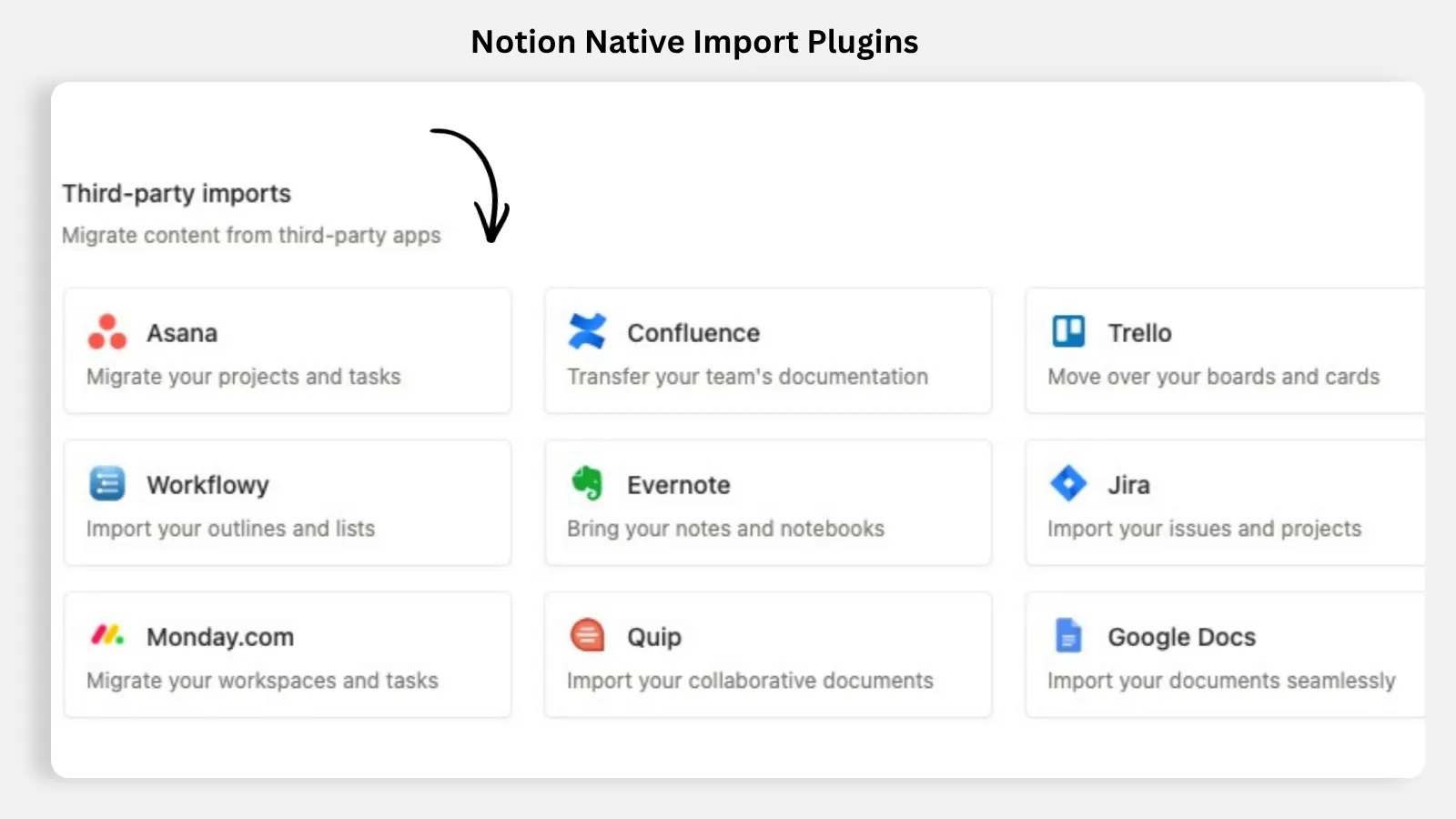
Monday to Notion migration is actually a lot easier than the above, because Monday has a native data import plugin inside Notion. This means it makes your import much easier once you connect your Monday account to Notion from the importer window.
For any data clean up or relational work, use Notion AI and you’re done in no time.
How do I import markdown files into Notion?
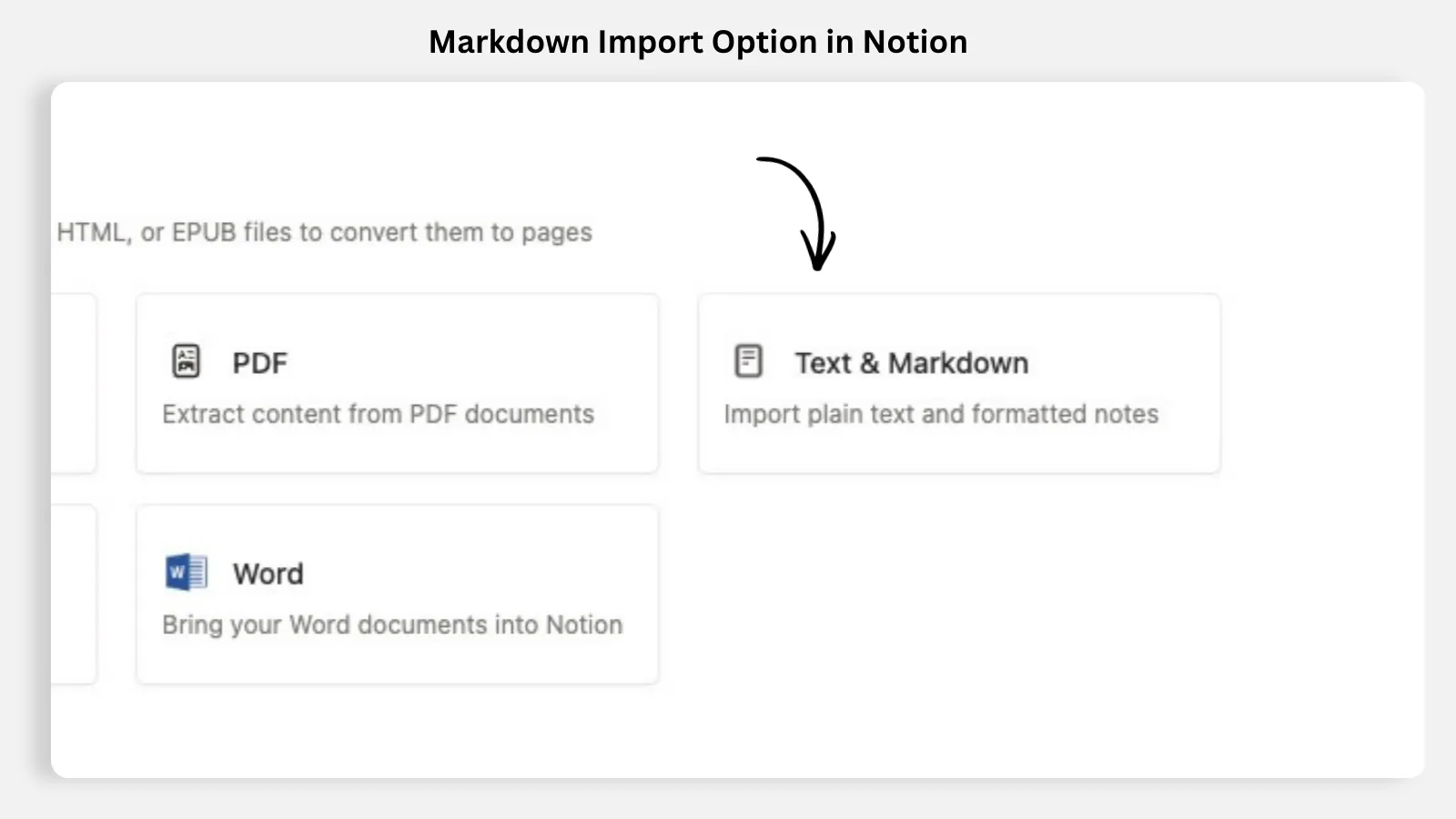
Not every migration starts in a project management tool. A founder I worked with had years of notes, drafts, and process docs sitting in markdown files, and he assumed the move meant uploading every last one. My first answer surprised him: do not upload all of it.
So basically I split markdown content into two buckets. Documents that just need to become pages, and data that needs to become a database. For the documents, the built-in import handles them directly. Each file comes in as its own page, and the formatting, headings, bold, lists, links, carries over. For anything tabular, a list of clients, a table of hours, a content log, the cleaner path is a CSV, exactly like the tool migrations above.
The same subset rule applies here. Only upload the markdown files you will actually want to search, filter, or query with AI. Everything else can stay where it lives and be connected through cloud integrations like Google Drive, OneDrive, or SharePoint, so you can still pull answers from it in place without duplicating storage.
Two extra tricks for this scenario:
You can turn an existing document into structure instead of retyping it. Attach the source file and prompt Notion AI to fill in the target database. The key is to be extremely specific. Name the exact destination database and order the instruction clearly, because otherwise the AI may misread the source formatting and put things in the wrong place.
If you have already trained an external AI tool on your own materials, you do not have to lose that context. Export those documents and upload them into Notion’s AI, so you transfer the memory and continue from where you left off rather than starting from scratch. I walk through that exact move in How a Consultant Replaced ChatGPT and Claude With Notion AI.
How do I export a Notion database schema without the data?
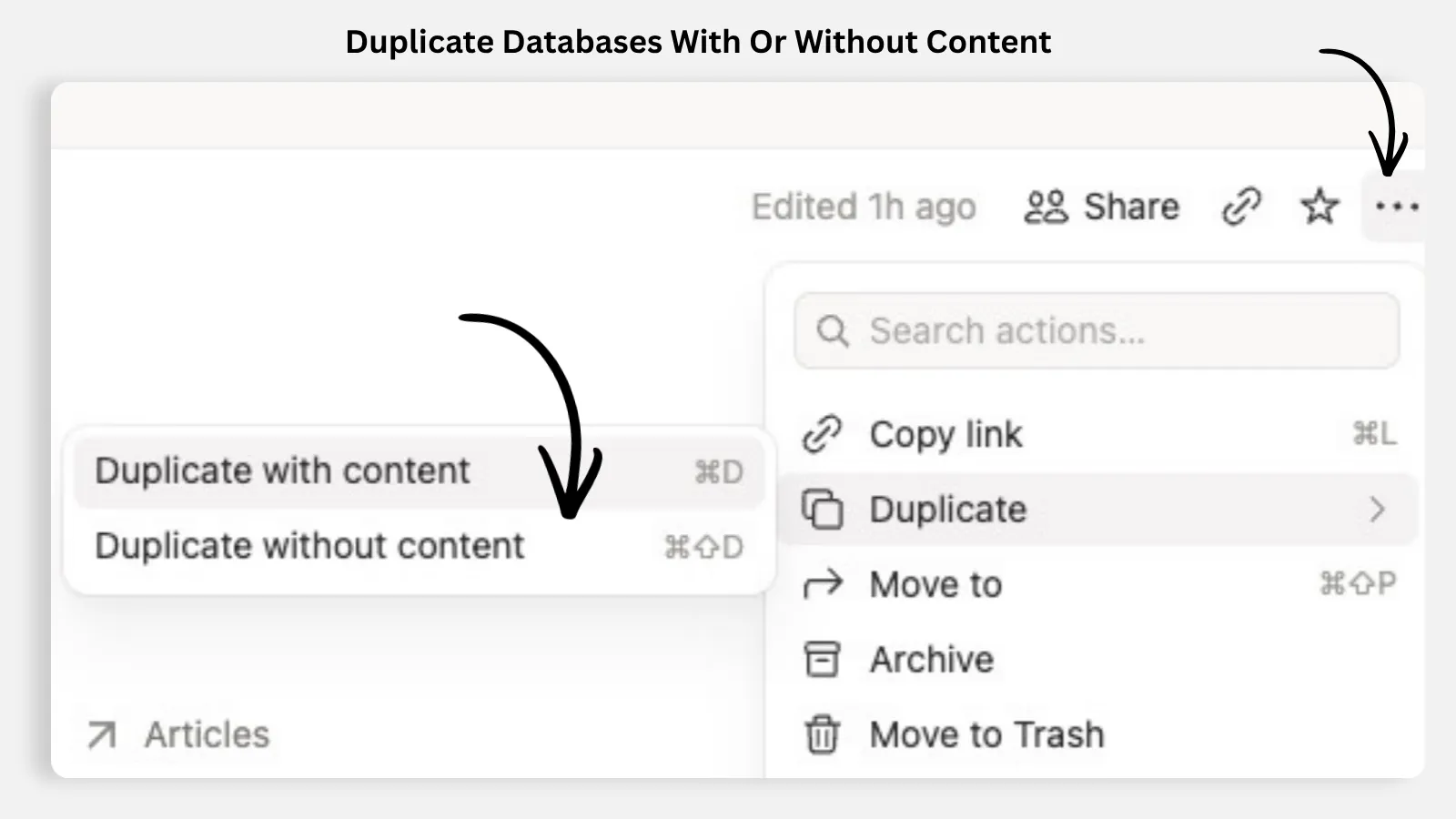
Migrations also run in the other direction, or from one workspace to another. When someone wants to export a Notion database schema, they usually mean one of two things. Either they need a portable file for a person outside the workspace, or they want to replicate the structure of a database without carrying the data along.
For a portable file, Notion gives you export options for CSV, Markdown, and PDF straight from the three-dot menu on any page or database. A CSV is the closest thing to a raw schema-plus-data file. Every column becomes a field, every row becomes a record, and you can open it in any spreadsheet tool. It is worth knowing that CSV strips out the Notion-specific logic. Relations, rollups, and formulas do not migrate as live logic, they export as their current values. So a CSV is a good portable copy, but not a blueprint of your structure.
For reusing structure, you do not need to export anything. You duplicate. Use the “duplicate without content” option on the database. You instantly inherit every property and configuration, the field types, the select options, the setup, but you start with an empty dataset. The same trick works at the page level. Duplicate a project tracker “without content”, rename it, and you keep all the configured views and properties with a clean slate. Rename the new database the moment you create it, so a duplicated skeleton never gets confused with the original.
How do I export Notion notes as PDF?
A client once emailed me a PDF she had exported and asked why it looked so bad. Everything was squeezed into a narrow column and her wide database was cut off at the edge. She thought Notion was the problem. It was not. The export is less about the button and more about the thirty seconds before you press it.
Two moves fix almost every bad export. First, open the three-dot menu at the top right of the page and toggle Full width on, because narrow pages waste space and produce broken exports. Second, in the export dialog, drop the scaling percentage down so wide databases stay readable instead of running off the edge. Those two together are the difference between a report that looks intentional and one that looks broken. And you can hand the clean PDF, Markdown, or CSV file to a client or stakeholder without buying them a paid seat or inviting them as guest just to view it.
Sometimes the best export is no export. If the content keeps changing and the recipient only needs to view it, publishing the page as a live web link can be the better move, because a published page stays current while a PDF is frozen the moment you create it. But here is a warning about that option: publishing is the only way to let people view entries without any account, and public viewers can see but cannot edit. It is not secure for personal or sensitive data, because anyone with the link can view it and links are easy to leak. I never publish anything with client details, financials, or personal information. For those, a controlled PDF is the safer choice or invite the person as a guest to the page.
Does Notion work offline?
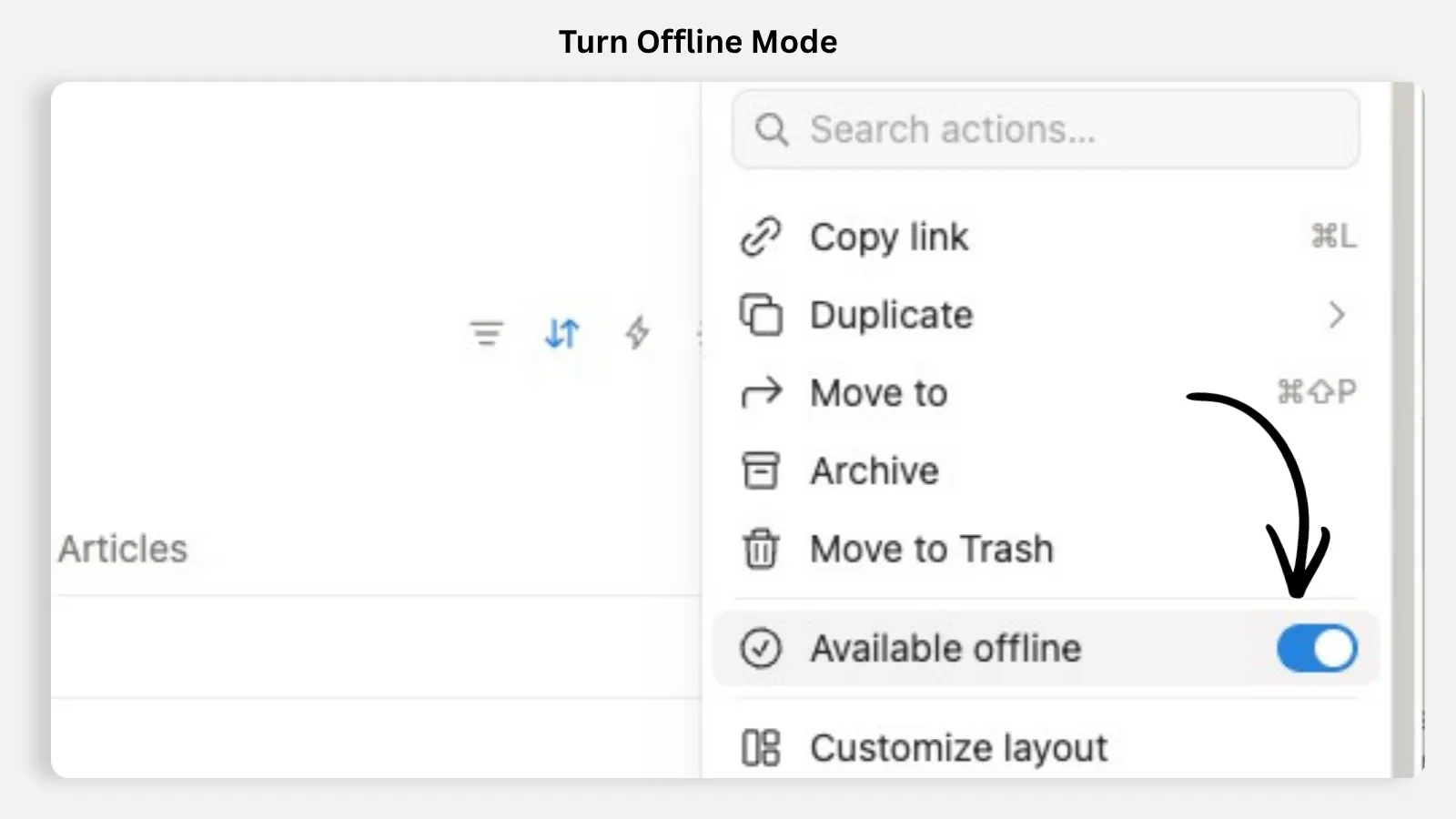
One of my clients travels constantly, and she nearly walked away from Notion over a single flight. The sidebar would not load, her pages were blank, and she assumed the whole tool fell apart without wifi. It does not. She just had not prepared offline mode yet.
The core move is preparation. Before you lose signal, mark the pages you need as available offline so they download once to your device. From then on you keep working locally, editing pages and databases as normal, and Notion syncs your changes back the moment you reconnect. The key words are “in advance”. Flip it on the night before a flight, not in the air staring at a blank screen. Note that some features are not available offline (like some buttons, some automations, and some other things).
Two habits make offline work smoother. Use the dedicated desktop app instead of a browser tab, because when the sidebar or pages fail to load in the browser it is often the browser cache misbehaving, and the desktop app handles local content much better. And let your phone carry the reminders. After you enable notifications on a date property, install the mobile app and confirm notifications are on, so deadline alerts reach you as push notifications instead of sitting unseen in an inbox.
When I walked my client through this, her reaction said it all:
“I like this one, I never knew about this one, this is a good tool for me, and I can do this with a cell phone too.”
How does file management in Notion work with storage limits?
After the data moves, the files question comes next. Almost everything comes down to a choice between storing a file inside a record and connecting to a file that lives somewhere else.
For files that belong to a specific record, an invoice on an expense entry, a contract on a client record, add a File and media property to the database. Each entry can then hold an uploaded file right alongside its other properties like title, date, and status. Rename the property to match what it holds, like “Invoice” or “Contract”, so records stay readable.
Then there is the limit that trips people up. On the free plan there is a file-size limit on direct uploads, which blocks large media like video files. Instead of fighting that cap or upgrading just to hold a few big files, store the heavy items in an external cloud drive and link them into the workspace. You sidestep the storage limit entirely while keeping everything accessible from one place.
The Google Drive integration follows the same split. Native Drive, Gmail, and Slack integration requires a paid Plus plan (or Business plan), and with it you search Drive files directly inside Notion. On the free plan you are not stuck. Add a URL property, rename it to something like “Google Drive folder”, and paste the link so you can jump straight to the source from each record.
Here is the quick map I give clients for where each file should live:
File | Where it lives | Why |
Invoice, contract, business card | File and media property on the record | It belongs to that record and opens in context |
Large media like video | Cloud drive, linked into the workspace | Sidesteps the free plan upload cap |
PDFs and text documents people read | Embedded on the page | Read-friendly formats render well inline |
Spreadsheets | Linked, opened at the source | Embeds render too small to read |
Archives you rarely open | Drive, OneDrive, or SharePoint, connected | Searchable in place, no duplicated storage |
How do I build a document hub instead of migrating every file?
A client was convinced a document hub meant dragging every file her company had ever created out of Google Drive and into Notion. I stopped her before she started. A good document hub is not a second copy of your file storage. It is a curated front door to the documents that matter, connected to the places your files already live.
Here is how I would set it up:
Make a shortlist. Which documents do you actually search, reference, or want AI to answer from? That shortlist, not your whole Drive, is the hub.
Create one database for those documents, with properties like type, owner, and status so the hub stays browsable.
Connect the files with the paid Drive integration, or with the renamed URL property from the section above on the free plan.
Embed PDFs and text documents on pages where reading in place helps, using the embed or Google Drive command. Embed what people read, link what people work in.
For the long tail of archived files, rely on the cloud connection rather than importing them.
The client who wanted to move her entire Drive ended up with a tidy hub of about twenty living documents, active files searchable inside Notion, archive linked but left alone. A document hub is defined by what you leave out as much as by what you bring in.
Why this matters?
The relations and the curated data are what make the new workspace better than the old one. If you dump everything across and lose the links, you have recreated your problems in a new tool. If you move only what you use, rebuild the connections with AI, and resist over-building on day one, you land in Notion with a system that is lighter, connected, and easier to run. The migration people fear the most is usually the one that goes fastest, as long as you respect how the import behaves and let the AI do the relinking.
All content in this article is grounded in real customer interactions and real projects we’ve worked on, the analysis, insights, and ideas are entirely my own. AI tools may have been used to help process raw data, or to reformulate and refine parts of the writing.
Related articles
Frequently asked questions
Does the Notion import keep relations between databases?
No. The native import cannot connect two separate databases during a single import, so relation properties come across empty. Import each dataset separately, then hand the original CSV files to Notion AI and ask it to rebuild the relations and fill in name-based fields like an assignee.
Can I connect Airtable and Notion instead of migrating?
Yes, and for archive data I would suggest exactly that. Keep the data where it already lives and connect it in place, so Notion can still search it without duplicating storage. Migrate only the tables you work with day to day, and check for a native connection before reaching for middleware.
Do markdown files keep their formatting when I upload them to Notion?
Yes. Each markdown file imports as its own page, and headings, bold, lists, and links carry over. For tabular content, use a CSV instead, because a database is the better home for anything you want to filter or track.
Can I export a Notion database schema without the data?
If you want the structure inside Notion, do not export at all. Duplicate the database “without content” and you inherit every property and configuration with an empty dataset. For a portable file, export a CSV, but relations, rollups, and formulas export as values, not live logic.
Does Notion offline mode work when I travel?
Yes, if you prepare in advance. Mark the space as available offline while you still have a connection, work locally as normal, and your changes sync back when you reconnect. Use the desktop app, because it handles local content more reliably than the browser.
How do I store large files without hitting the storage limit?
The free plan has a 5MB file-size cap on direct uploads, which blocks large media like video. Store heavy files in an external cloud drive and link them into the workspace instead, so you keep one-click access without paying for a higher tier just to hold media.
When is a custom API importer worth building?
Only when the volume justifies it. If you are a team running relational bulk imports repeatedly, a custom importer on Notion\’s API gives you full control and automation. For a one-time move, import plus AI is faster and needs no developer. Try the new Notion Workers as well with Claude Code to sync data from external tools to Notion.